插件中文资料库
中文说明、玩家点评、适用场景和替代推荐,方便快速判断是否适合你。
- 界面布局、头像框、姓名板和动作条优化
 Details! Mythic+ Scoreboard
 BagSync
 TankMD Misdirect
SceneMachine 插件下载与使用指南
本页整理了 SceneMachine 的功能用途、适用人群、安装方法和常见问题,方便玩家快速判断是否需要安装。
适合谁用
SceneMachine 是一款 开发工具 / 小游戏 / 其他插件 类插件,适合需要优化界面、提升操作效率或补充游戏信息提示的魔兽世界玩家。
基本信息
- 插件作者:SongZee
- 插件分类:开发工具 / 小游戏 / 其他插件
- 适配版本:12.0.5,12.0.7
- 累计下载:44
安装方法
- 点击上方下载按钮获取 SceneMachine插件文件。
- 解压后将插件文件夹放入 World of Warcraft/_retail_/Interface/AddOns 目录。
- 重启游戏或在角色界面点击插件,确认 SceneMachine 已启用。
- 如果插件不生效,请检查版本是否匹配,或关闭同类冲突插件后重试。
使用建议
SceneMachine 安装后建议先在角色界面确认已启用,进入游戏后根据插件提供的命令、小地图按钮或设置面板进行调整。如遇到报错,可先单独启用该插件排查冲突。
SceneMachine 常见问题
SceneMachine 适合需要 开发工具 / 小游戏 / 其他插件 类功能的玩家,特别是希望提升游戏便利性、界面管理或战斗信息获取效率的用户。
下载后解压到 Interface/AddOns 目录,然后重启游戏并在角色界面启用插件。
常见原因是目录多套一层、游戏版本不匹配、依赖插件缺失或同类插件冲突。
可以查看本页的替代插件推荐和相关插件区域,按下载量和分类选择同类工具。
插件 AI 问答
可以问:这个插件正式服能用吗、和 DBM 冲突吗、怎么设置、有没有替代插件。
SceneMachine 是一款魔兽世界插件,主要用于小游戏相关功能。建议根据自己的版本和插件环境先测试兼容性。
插件用途
SceneMachine 主要面向需要小游戏功能的玩家,用来改善游戏体验、减少重复操作或补充默认界面没有直接提供的信息。
适用场景
- 小游戏相关功能
使用建议
安装后建议先在角色选择界面或插件管理器中确认已启用,再进入游戏测试是否与现有整合包、WA 和其他插件冲突。如遇报错,可以先禁用同类插件排查。
Scene Machine
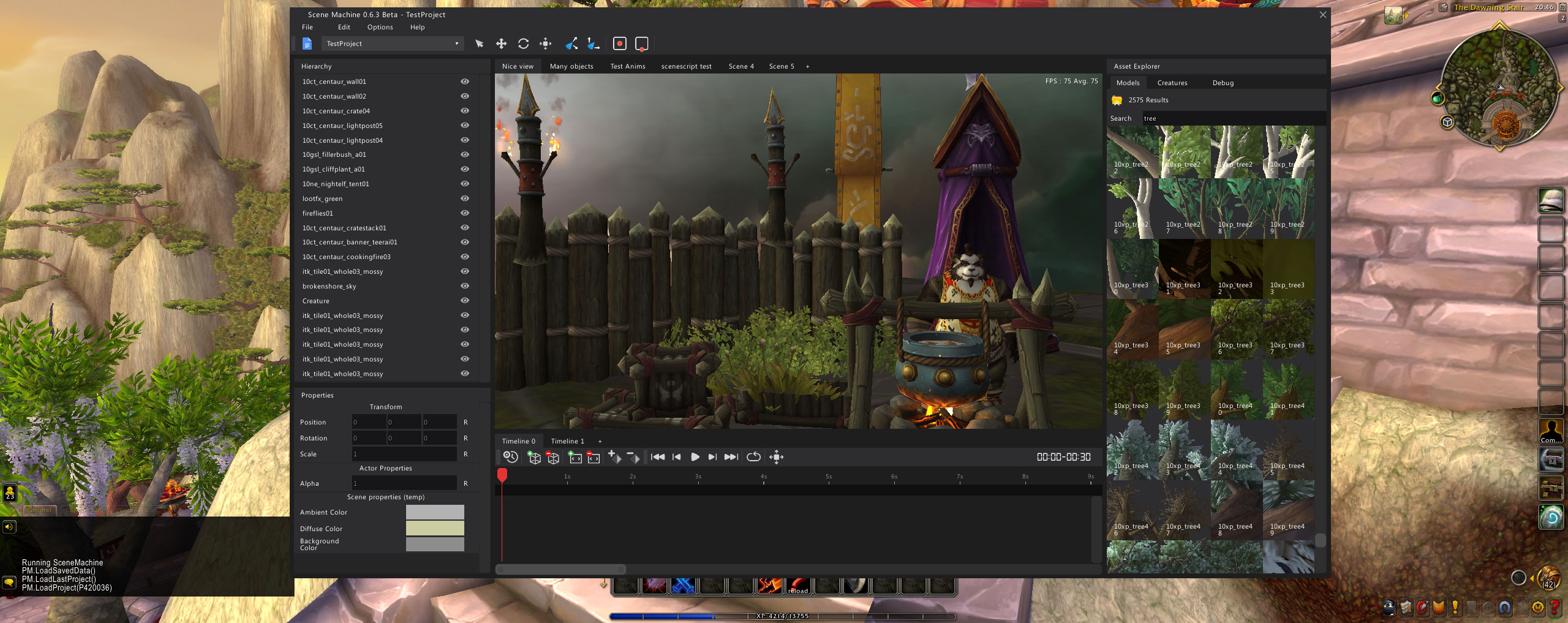
Scene Machine is a tool where you can get creative and make your own scenes using the in game models.
It's currently under -early- development but I wanted to publish it anyway to get some feedback.
How to use, a quick guide
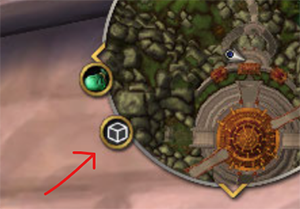
To open Scene Machine, find the small icon around your mini-map and click it;
You will be greeted by the main "Editor" window, with a blank gray scene.
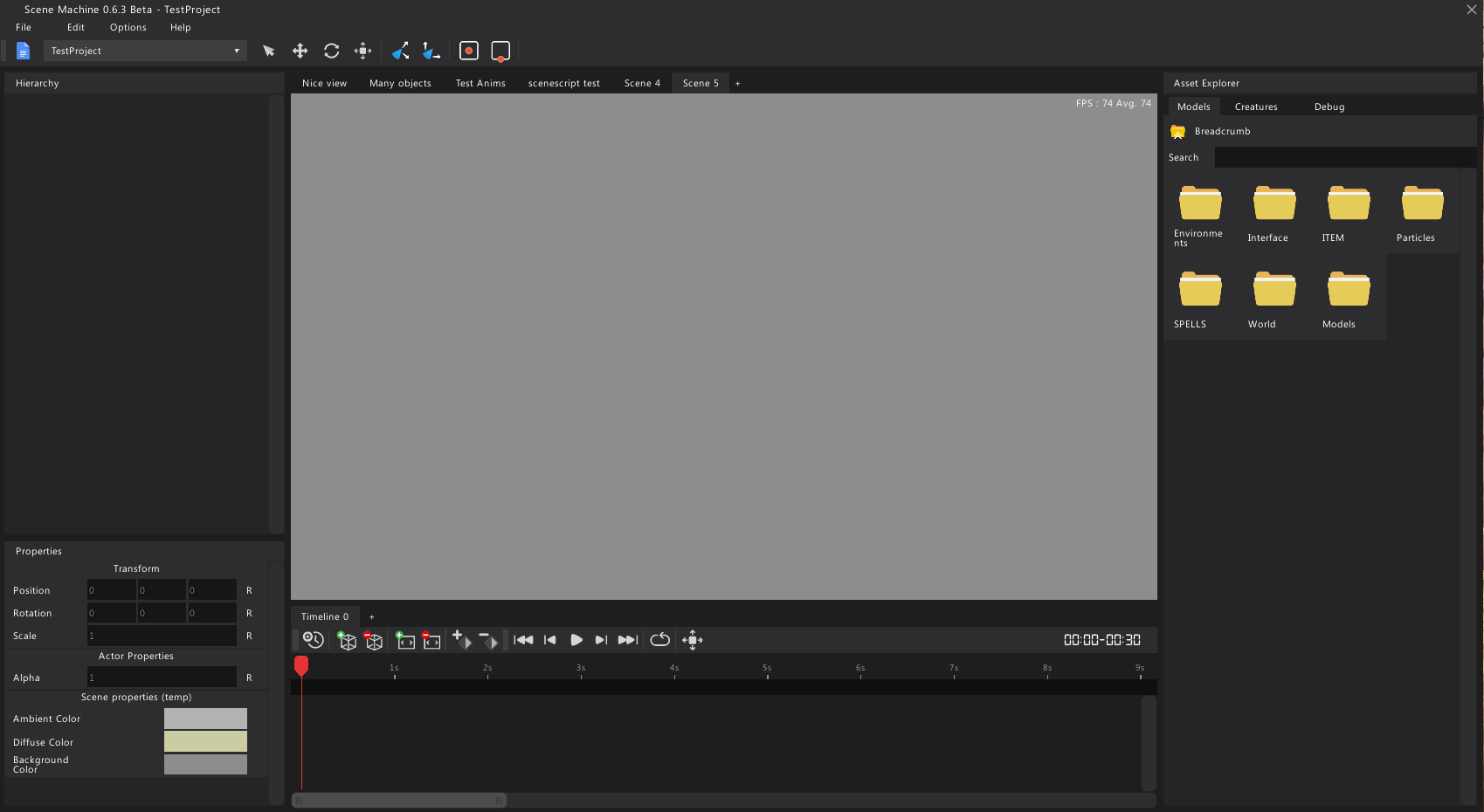
- The gray frame in the center is the scene frame, this is the canvas where you will be crafting your scene.
- On the left side there are 2 panels:
- Hierarchy - will display a list of all objects in the scene (currently empty)
- Properties - allows you to modify different properties of selected objects, or the scene itself
- On the right side is the Asset Explorer, where you will find all of the available models, and creatures in the data
- Bottom side are the Timelines, where you will be able to animate objects. (This feature is still being worked on so this guide won't cover it)
Scene navigation is simple, it follows WoW's flying controls. Simply use WASD to move around, and hold the right mouse button to point the camera. (You can find all the keys below)
But first let's load some objects into the scene so we can see where we're going:
Starting off with the Asset Explorer, you have 2 tabs of interest at the moment
- Models tab: allows you to browse through the game's folder structure to find any model that you need, bee it a chair, a tree, a skybox, or a light source
- Creatures tab: will contain a list of all available creatures (remember: you can also search through the models and creatures list, at the top)
The easiest way to load in models is to simply drag them from the asset explorer and into the scene
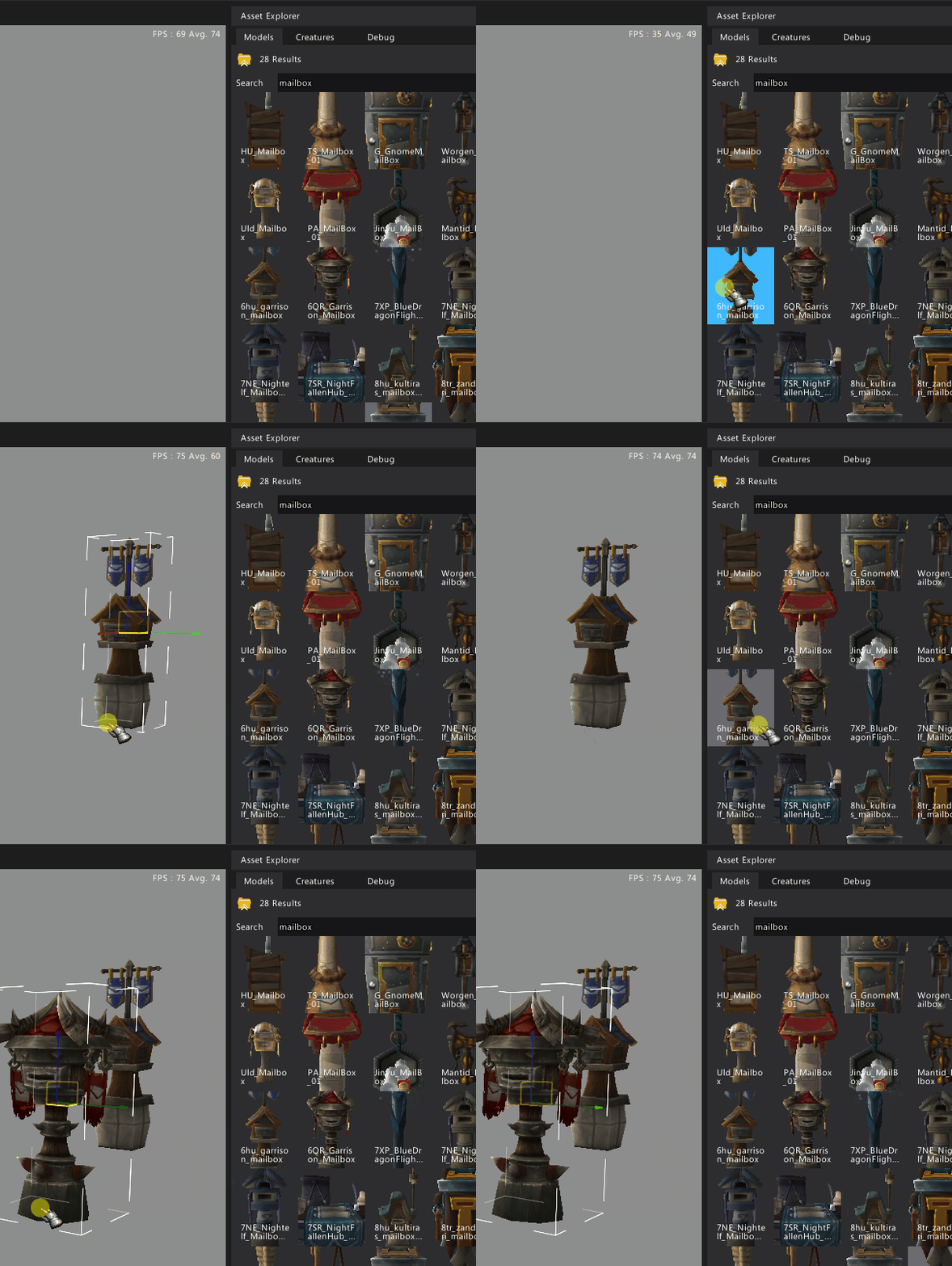 (the same applies for creatures)
Once you have an object in your scene, you're able to further position/rotate/scale it by enabling the right tool
To pick a tool: go to the toolbar and choose between select/move/rotate/scale, or right click anywhere in the scene and choose from the context menu, or use one of the key-binds below

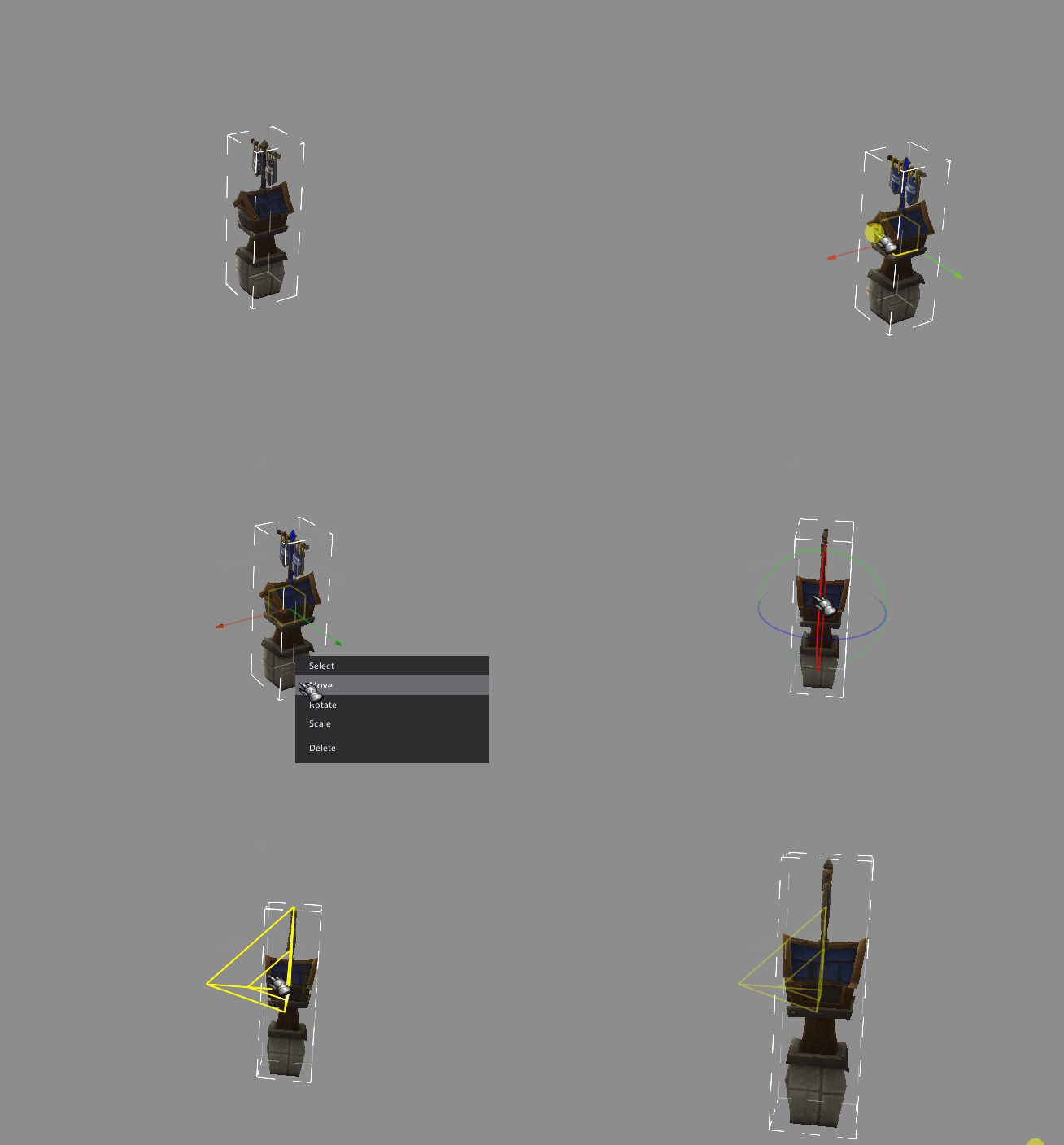
These are the absolute basics to get you started. More in depth guides and tricks will follow sometime soon.
Keyboard Shortcuts

Important Notes
- Some features such as the animation system are still work in progress. There will be some refactoring done so any animation data saved may be lost.
用户评价
暂无 / 5,0 条评价相关推荐
继续看看这些内容
