插件中文资料库
中文说明、玩家点评、适用场景和替代推荐,方便快速判断是否适合你。
- 界面布局、头像框、姓名板和动作条优化
 RightClickSelfCast
 GroupFinder
 Sleek XP Bubbles
Immersive 插件下载与使用指南
本页整理了 Immersive 的功能用途、适用人群、安装方法和常见问题,方便玩家快速判断是否需要安装。
适合谁用
Immersive 是一款 动作条 / 角色扮演 / 聊天与通讯 / HUD界面 / 单位框架 类插件,适合需要优化界面、提升操作效率或补充游戏信息提示的魔兽世界玩家。
基本信息
- 插件作者:Erranaxx
- 插件分类:动作条 / 角色扮演 / 聊天与通讯 / HUD界面 / 单位框架
- 适配版本:12.0.0,1.15.8,5.5.3
- 累计下载:39
安装方法
- 点击上方下载按钮获取 Immersive插件文件。
- 解压后将插件文件夹放入 World of Warcraft/_retail_/Interface/AddOns 目录。
- 重启游戏或在角色界面点击插件,确认 Immersive 已启用。
- 如果插件不生效,请检查版本是否匹配,或关闭同类冲突插件后重试。
使用建议
Immersive 安装后建议先在角色界面确认已启用,进入游戏后根据插件提供的命令、小地图按钮或设置面板进行调整。如遇到报错,可先单独启用该插件排查冲突。
Immersive 常见问题
Immersive 适合需要 动作条 / 角色扮演 / 聊天与通讯 / HUD界面 / 单位框架 类功能的玩家,特别是希望提升游戏便利性、界面管理或战斗信息获取效率的用户。
下载后解压到 Interface/AddOns 目录,然后重启游戏并在角色界面启用插件。
常见原因是目录多套一层、游戏版本不匹配、依赖插件缺失或同类插件冲突。
可以查看本页的替代插件推荐和相关插件区域,按下载量和分类选择同类工具。
插件 AI 问答
可以问:这个插件正式服能用吗、和 DBM 冲突吗、怎么设置、有没有替代插件。
Immersive 是一款魔兽世界插件,主要用于聊天与通讯相关功能。建议根据自己的版本和插件环境先测试兼容性。
插件用途
Immersive 主要面向需要聊天与通讯功能的玩家,用来改善游戏体验、减少重复操作或补充默认界面没有直接提供的信息。
适用场景
- 聊天与通讯相关功能
使用建议
安装后建议先在角色选择界面或插件管理器中确认已启用,再进入游戏测试是否与现有整合包、WA 和其他插件冲突。如遇报错,可以先禁用同类插件排查。
Less HUD, More GAME!
The intention of Immersive is to automatically hide the player's HUD and only show elements when they are required. This allows you to better appreciate the beauty of WoW's world and lore without all the screen clutter.
Latest
New in v3.0.11!
- Added Midnight compatibility.
- Due to the Midnight addon changes the condition "Is Hungry" is no longer available in the Retail version. This condition showed a frame if the player's current health was less than the maximum.
Midnight
Known Issues
- Entering the new HUD "Edit Mode" causes the Blizzard UI Blocked Error. The current workaround I have found for this is to activate the Panic mode to display all on screen elements before entering Edit Mode. I have a few solutions in mind to try and alleviate this issue from occurring.
- A UI reload may be required to update the hotspots of the UI elements after moving them in Edit Mode. I'll correct this in a future update.
- There are a number of LUA error messages when entering the interface options. From the testing I performed it appeared that changing options in Immersive does save any changes made however, as a precaution I recommend making a backup of the "WTF" folder just in case.
Features
Immersive is an extendable framework that manages the visibility of screen elements based on context. Currently supported UIs include:
- Default Blizzard UI
For example, the player frame shows the player's health and resource (such as Mana). With Immersive enabled, the player frame is only shown while in combat, when the player does not have maximum health or the player is engaged in an Arena / Battleground.
Immersive adds a unique key-bind called "Activate Panic Mode", this allows you to set a key-bind that will temporarily disable Immersive and show all onscreen elements.
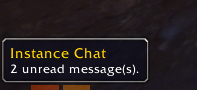
Some frames have the option to enable unique behaviour such as the chat frame. If the chat frame is in the 'Chat Gems' mode and has been hidden by Immersive, each time a new message is received it will create / update a chat gem which represents a single chat channel. Chat channels include Say, Yell, Party etc. Hovering your cursor over a chat gem will display a tooltip indicating the name of the channel and the number of messages received.
Clicking any chat gem will also open the chat frame. If no messages from any channel have been received then a default yellow chat gem is displayed to allow the player to open the chat frame.
 |
 |
 |
Most frames can be shown by mousing over the area where the frame normally occupies. Some exceptions exist such as the chat frame operating in 'Chat Gems' mode.
Known Issues
- Raid frames backgrounds sometimes are not faded correctly when new members join the group.
- Hotspots sometimes do not match the elements location when using ElvUI.
Suggestions
- Third Party GUI: Add support for LUI.
- Third Party GUI: Add support for Tukui.
- Expand Gems Mode: Add Gems Mode support for other frames such as Raid, Quest Tracker, Minimap etc.
- Gem Click/Hover: Add the option for an element to activate from a gem on a click or by mouse-over.
For Developers
Basic Integration
Immersive provides a simple extension point that allows mod developers to include their HUD elements into the framework. Firstly, we need access to the Immersive api service. This is achieved with the following code:
local Engine, Api, Locale, Settings = unpack(Immersive)
The Api service gives us access to the following functions:
- Api:RegisterElement(name[, params]) Initializes and registers an element instance. An element in Immersive is a collection of on screen frames that share visibility conditions as well as settings such as fade out duration. The name parameter is required and should be globally unique, consider including your addon name for uniqueness. The params parameter is optional and provides the defaults for the element. The current supported defaults are as follows:
- Enabled: Indicates if the element has been enabled or disabled by the player in the interface options.
- DelayTime: The delay (in seconds) before an element begins to fade out.
- FadeTime: The amount of time (in seconds) an element takes to fade out.
- IsHotspot: Determines if any registered hotspots are checked during an elements validation, if disabled an element cannot be activated by mouseover.
- Mode: The mode indicates if all conditions must be met to activate an element or if any condition can be met to activate an element. This value defaults to a value of "ANY".
- Api:GetElement(name) Get an existing element instance with the specified name.
- Api:UnregisterElement(name) Unregisters an element instance with the specified name.
- Api:UnregisterAllElements() Unregisters all element instances. This affects all elements globally and should be avoided!
- Api:RegisterCondition(name, func, title, tooltip) Registers a condition for use in multiple modules. This registration process is utilized by the element:AddConditionRange function to allow player configurability. The title and tooltip properties are provided for localization purposes.
- Api:UnregisterCondition(name) Unregisters a condition with the specified name.
- Api:UnregisterAllConditions() Unregisters all conditions. This affects all elements globally and should be avoided!
- Api:RegisterMode(name, validate, title) Registers an operation mode for use in multiple modules. This allows you to specify a custom behaviour for an element. The following modes are provided by default:
- ANY: An element is activated if any condition is met.
- ALL: An element is activated only if all conditions are met.
- HIDDEN: An element is never activated by any condition, the element can still be activated if a hotspot is enabled.
- Api:GetMode(name) Get an existing operation mode with the specified name.
- Api:GetAvailableModes(element) Gets all available modes based on the specified element. Some operation modes are restricted to certain elements.
An example of registering an element might be:
local element = Api:RegisterElement("CoolAddonElement")
Once an element is registered with the framework we can begin the integration. The following properties are available to be changed:
- element.Name The name of the element. This is the name provided to Api:RegisterElement.
- element.Enabled Indicates if the element has been enabled or disabled by the player in the interface options.
- element.DelayTime The delay (in seconds) before an element begins to fade out. See element:Apply() below.
- element.FadeTime The amount of time (in seconds) an element takes to fade out. See element:Apply() below.
- element.IsHotspot Determines if any registered hotspots are checked during an elements validation, if disabled an element cannot be activated by mouseover.
- element.Mode The mode indicates if all conditions must be met to activate an element or if any condition can be met to activate an element. This value defaults to a value of "Any".
- element.Animation This is the underlying Frame created to handle the fading animation. (see WoW Api CreateFrame). Access to this object can be useful when needing to handled events. Manipulating this object directly is only required in advanced scenarios.
- element.Animation.FadeIn This is the underlying AnimationGroup created to handle fading in. Manipulating this object directly is only required in advanced scenarios.
- element.Animation.FadeOut This is the underlying AnimationGroup created to handle fading out. Manipulating this object directly is only required in advanced scenarios.
The following functions are available to be called:
- element:AddFrame(frame) Adds a frame to the element collection to be managed and animated.
- element:RemoveFrame(frame) Removes an existing frame from the element collection.
- element:AddCondition(func) Adds a condition that will determine the behaviour of all attached frames. The specified function should return either a true or false value, and depending on the mode of the element this will determine if it should be activated.
- element:AddConditionRange(range) Adds a range of preregistered conditions, the condition is only added if the value of the pair is true. This function is typically used in conjunction the settings database. An example of a settings object that would be passed into the function could be the following: { IsInCombat = true }
- element:RemoveCondition(func) Removes an existing condition.
- element:AddHotspot(left, bottom, width, height) Adds a hotspot for the element. A hotspot indicates a region of the screen (in pixels) that the player can mouseover in order to force the element to activate.
- element:RemoveHotspot(left, bottom, width, height) Removes an existing hotspot from the element.
- element:ClearHotspots() Removes all existing hotspots from the element.
- element:Apply() This function applies any changes made to the element.DelayTime or element.FadeTime properties.
The following callbacks are also available to be utilized:
- element.OnFadeIn = function(frame, alpha) ... end Triggers each game update for each frame in the element that has its alpha changed. Both the frame and the alpha it was changed to are available in the callback.
- element.OnFadeOut = function(frame, alpha) ... end Triggers each game update for each frame in the element that has its alpha changed. Both the frame and the alpha it was changed to are available in the callback.
- element.OnBeforeUpdate = function(frame) ... end Triggers each game update for each frame in the element before any alpha changes occur.
- element.OnAfterUpdate = function(frame) ... end Triggers each game update for each frame in the element after any alpha changes occur.
Advanced Integration
In advanced scenarios it is also possible to create a seperate module that will be managed by Immersive. Please refer to the 'Default' module in Immersive as an example of how you might create and structure a module. Below is also a simplified example of a module declaration:
local Engine, Api, Locale, Settings = unpack(Immersive)

-- Registration
local CoolAddon = Engine:RegisterModule("CoolAddonModule")

-- Initialize the module.
function CoolAddon:OnInitialize()
end

-- Called when the module is enabled.
function CoolAddon:OnEnable()
end

-- Called when the module is disabled.
function CoolAddon:OnDisable()
end

-- Register the default settings for the module.
function CoolAddon:OnRegisterDefaults()
  return {
    Enabled = true,
    IsCool = true
  }
end

-- Registers controls for the options panel
function CoolAddon:OnRegisterOptions()
  local settings = Settings:Get(self.Name)
  local panel = CreateFrame("Frame")

  panel.name = "Cool Addon"
  panel.parent = Locale.CONFIG_MODULE_IMMERSIVE_NAME

  panel.okay = function()
    -- Apply options
  end
  panel.cancel = function()
    -- Cancel options
  end
  panel.default = function()
    -- Set options to default
  end
  panel.refresh = function()
    -- Refresh options controls to match settings
  end
end
用户评价
暂无 / 5,0 条评价相关推荐
继续看看这些内容
