插件中文资料库
中文说明、玩家点评、适用场景和替代推荐,方便快速判断是否适合你。
- 界面布局、头像框、姓名板和动作条优化
 GroupFinder
 FollowerLocationInfo
 Sleek XP Bubbles
iChat 插件下载与使用指南
本页整理了 iChat 的功能用途、适用人群、安装方法和常见问题,方便玩家快速判断是否需要安装。
适合谁用
iChat 是一款 聊天与通讯 类插件,适合需要优化界面、提升操作效率或补充游戏信息提示的魔兽世界玩家。
基本信息
- 插件作者:paradosi
- 插件分类:聊天与通讯
- 适配版本:1.15.8,2.5.5,12.0.1
- 累计下载:48
安装方法
- 点击上方下载按钮获取 iChat插件文件。
- 解压后将插件文件夹放入 World of Warcraft/_retail_/Interface/AddOns 目录。
- 重启游戏或在角色界面点击插件,确认 iChat 已启用。
- 如果插件不生效,请检查版本是否匹配,或关闭同类冲突插件后重试。
使用建议
iChat 安装后建议先在角色界面确认已启用,进入游戏后根据插件提供的命令、小地图按钮或设置面板进行调整。如遇到报错,可先单独启用该插件排查冲突。
iChat 常见问题
iChat 适合需要 聊天与通讯 类功能的玩家,特别是希望提升游戏便利性、界面管理或战斗信息获取效率的用户。
下载后解压到 Interface/AddOns 目录,然后重启游戏并在角色界面启用插件。
常见原因是目录多套一层、游戏版本不匹配、依赖插件缺失或同类插件冲突。
可以查看本页的替代插件推荐和相关插件区域,按下载量和分类选择同类工具。
插件 AI 问答
可以问:这个插件正式服能用吗、和 DBM 冲突吗、怎么设置、有没有替代插件。
iChat 是一款魔兽世界插件,主要用于聊天与通讯相关功能。建议根据自己的版本和插件环境先测试兼容性。
插件用途
iChat 主要面向需要聊天与通讯功能的玩家,用来改善游戏体验、减少重复操作或补充默认界面没有直接提供的信息。
适用场景
- 聊天与通讯相关功能
使用建议
安装后建议先在角色选择界面或插件管理器中确认已启用,再进入游戏测试是否与现有整合包、WA 和其他插件冲突。如遇报错,可以先禁用同类插件排查。
iChat
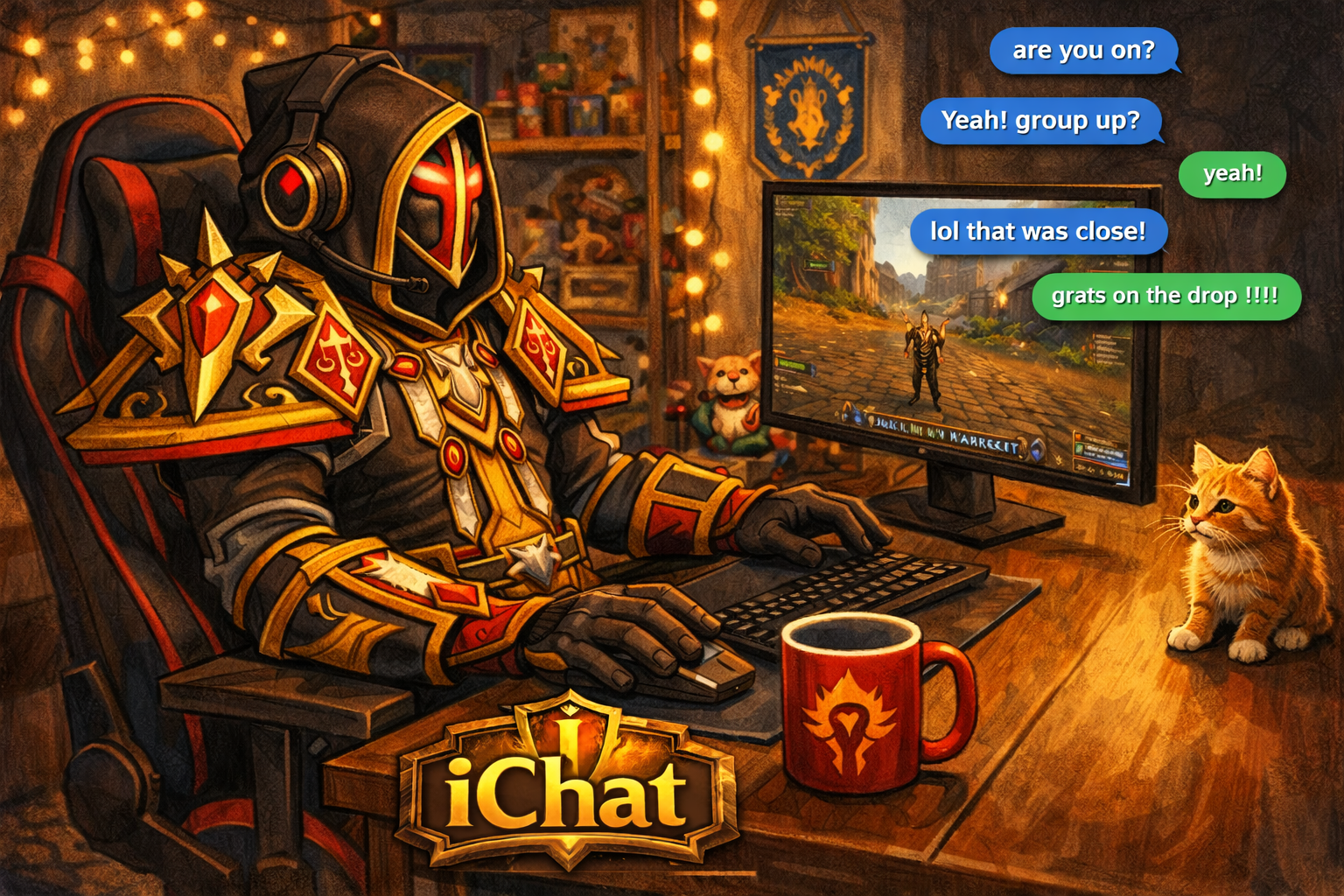
An iMessage-style whisper client for World of Warcraft.
Replace the default whisper system with a modern messaging UI featuring chat bubbles, conversation threads, emoji, notification sounds, and more.




Screenshots
Features
Conversation UI
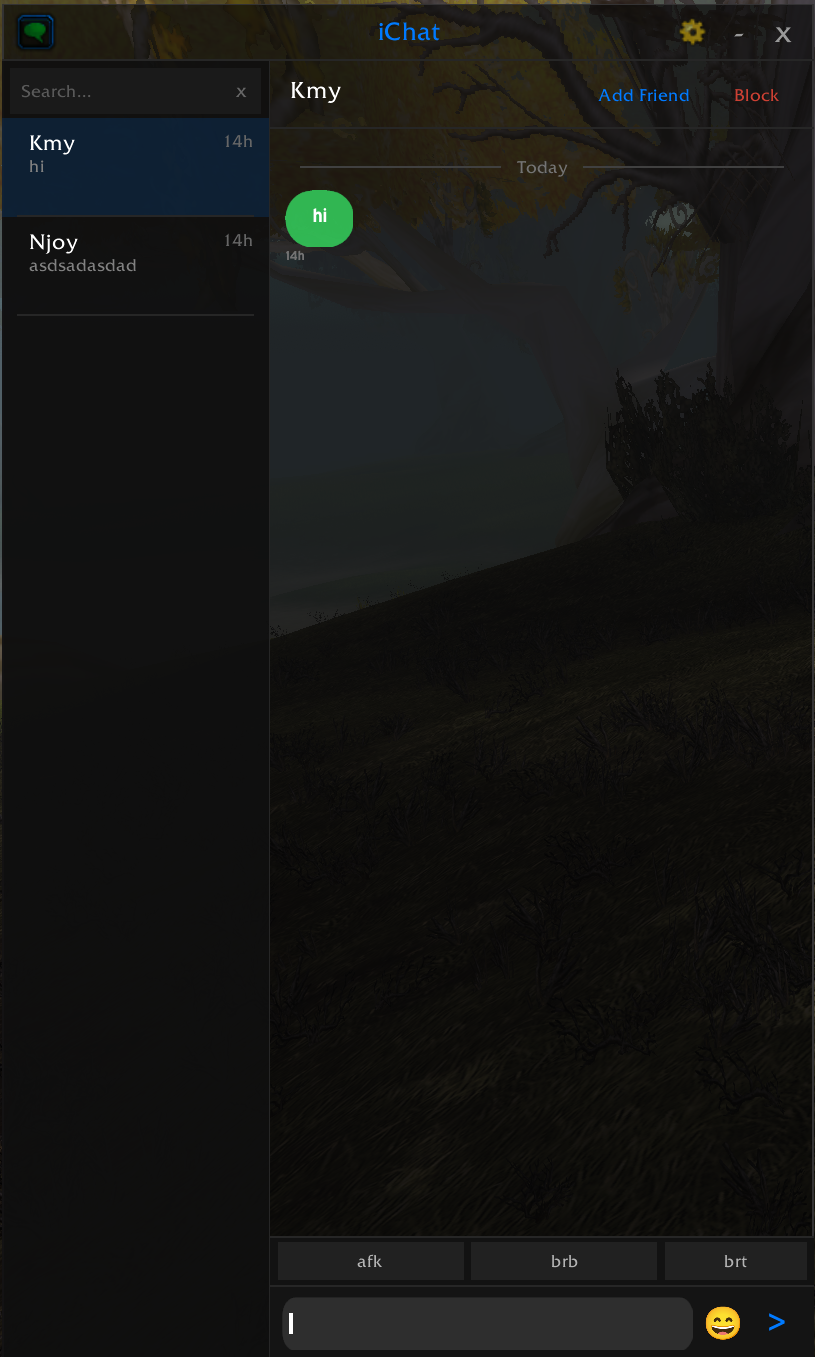
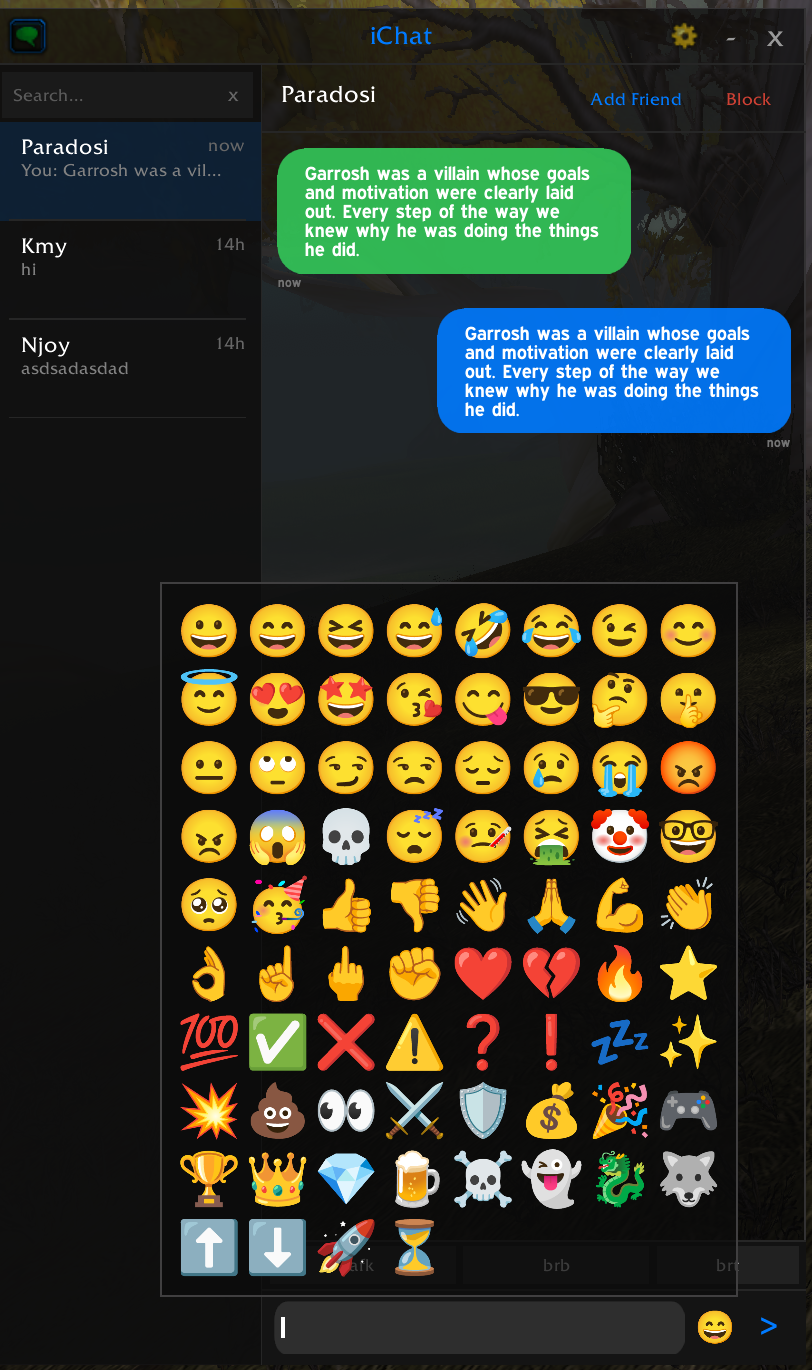
- iMessage-style chat bubbles with rounded corners (9-slice pill textures) and optional bubble tails
- Conversation list on the left panel, sorted by most recent activity
- Pinned conversations — pin favorites to the top of the list
- Unread badges on conversations with new messages
- "New Messages" separator — visual divider when scrolling to unread messages
- Date separators — "Today", "Yesterday", "Jan 5" between messages on different days
- Message previews in the conversation list
- Relative timestamps (now, 5m, 2h, etc.) — hover any bubble for exact time
- Resizable window (350x400 to 700x800) with drag-to-move
- Minimize to title bar with the
-button - ESC to close — registered with the UI special frames system
- Version displayed in title bar
Bubble Colors
- Blue (right-aligned) — your sent messages
- Blue (left-aligned, lighter) — incoming from friends
- Green (left-aligned) — incoming from non-friends
Delivery Status
- "Sent" — gray indicator below your messages when delivery is confirmed by the server
- "Failed" — red indicator when the recipient is offline or not found
Typing Indicator
- Animated "typing…" in the conversation header when you're typing in the input box
- Cycles through "typing." → "typing.." → "typing…" animation
- Auto-clears after 2 seconds of inactivity
- Toggle in Settings → Behavior
Item Links
- Clickable item/spell links in chat bubbles — hover for tooltip, shift-click to link
Search & Navigation
- Search bar — filter conversations by name or message content
- Keyboard shortcuts — Tab/Shift+Tab to cycle between conversations
- Right-click context menu — pin, mute, add note, or delete conversations
Online Status & Notifications
- Online status indicator — green dot for online friends, gray for offline
- Class-colored names — friend names colored by their WoW class
- Online/offline toast notifications — popup at top of screen when a friend you've chatted with comes online or goes offline. Click the toast to open their conversation. Toggle in Settings → Behavior.
Battle.net Integration
- Full BNet (RealID) whisper support — send and receive whispers to Battle.net friends
- Smart display format — shows real name in the header, "Name (CharacterName)" in the conversation list
- BNet cyan-blue coloring — Battle.net names use Blizzard's signature cyan-blue throughout
- Character class colors — BNet character names shown in their WoW class color
- Cross-game messaging — message friends playing Diablo 3, Hearthstone, Overwatch, StarCraft, and more
- Game info display — header shows what game they're playing (e.g., "WoW: CharName (L60 Warrior)" or "Diablo 3")
- Mixed conversation list — BNet and regular whispers appear together, sorted by activity
- Chat filter — suppresses BNet whispers from the default chat frame (respects "Suppress whispers" setting)
Titan Panel Integration
- Native Titan Panel plugin — appears in your Titan bar alongside other plugins
- Left-click to toggle the iChat window
- Right-click for Titan Panel context menu with quick options
- Unread count display — shows unread message count (e.g.,
3,99+) or empty when caught up - Tooltip — hover for unread count and usage hints
- Optional — no errors if Titan Panel is not installed
Player Info & Portraits
- Level, race, class, and location displayed in the conversation header subtitle (e.g., "Lv70 Human Warrior Stormwind")
- 3D portrait when the player is visible as a unit (target, party, raid)
- Class icon fallback when a player is out of range but class is known — hidden entirely when no info is available (no question marks)
- Data sourced from friends list, guild roster, and visible units
Guild & Party Awareness
- Guild rank shown in conversation header (green)
- Party role with tank/healer/DPS icon (blue)
- Raid membership indicator (orange)
- Updates automatically on roster changes
Account-Wide Conversations
- Share conversations across characters — optional toggle in Settings → Behavior
- When enabled, all characters on the account share one conversation history
- Intelligently migrates existing per-character data when toggling on
- Off by default — each character has separate history
Contact Management
- Add Friend / Block buttons in the conversation header
- Contact notes — add a personal note for any contact (shown in header)
- Per-contact mute — suppress notification sounds for specific contacts
- Pin conversations — keep important contacts at the top of the list
Compose & Quick Reply
- Compose button — start a new conversation with any player
- 5 configurable quick reply buttons — set your own canned responses (afk, brb, etc.)
- Send via Enter key or the send button
Auto-Reply
- Configurable auto-reply — automatically responds to incoming whispers with a custom message
- One reply per contact per session — prevents spam
- Quick toggle —
/ichat autoreplyto enable/disable
Emoji
- 75+ bundled emoji from Google's Noto Emoji — type
:shortcode:to use (e.g.:thumbsup:,:fire:,:heart:) - Emoji picker button next to the input box — click to browse and insert emoji
/ichat emoji— prints all available emoji with previews to chat- Emoji-Core support (optional) — if the Emoji-Core addon is installed, its emoji and autocomplete work alongside the built-in set
Notification Sounds
- 3 built-in notification sounds — Glass, Tritone, Chime
- LibSharedMedia support — any sounds registered by other addons (ElvUI, SharedMedia packs, etc.) appear as additional options
- Taskbar flash — the Windows taskbar icon flashes on incoming whisper
Floating Button
- Draggable floating button — left-click to toggle window, right-click for settings
- Faction-themed icon — blue shield for Alliance, red shield for Horde
- Unread badge — red dot with count for unread messages
- Whisper flash — pulses on incoming whispers until you open iChat
- Configurable button size (24–64px) — slider in Settings → Behavior
- Freely positionable — drag anywhere on screen, position saved between sessions
- LibDBIcon support — also registers with minimap button manager addons (MinimapButtonButton, etc.)
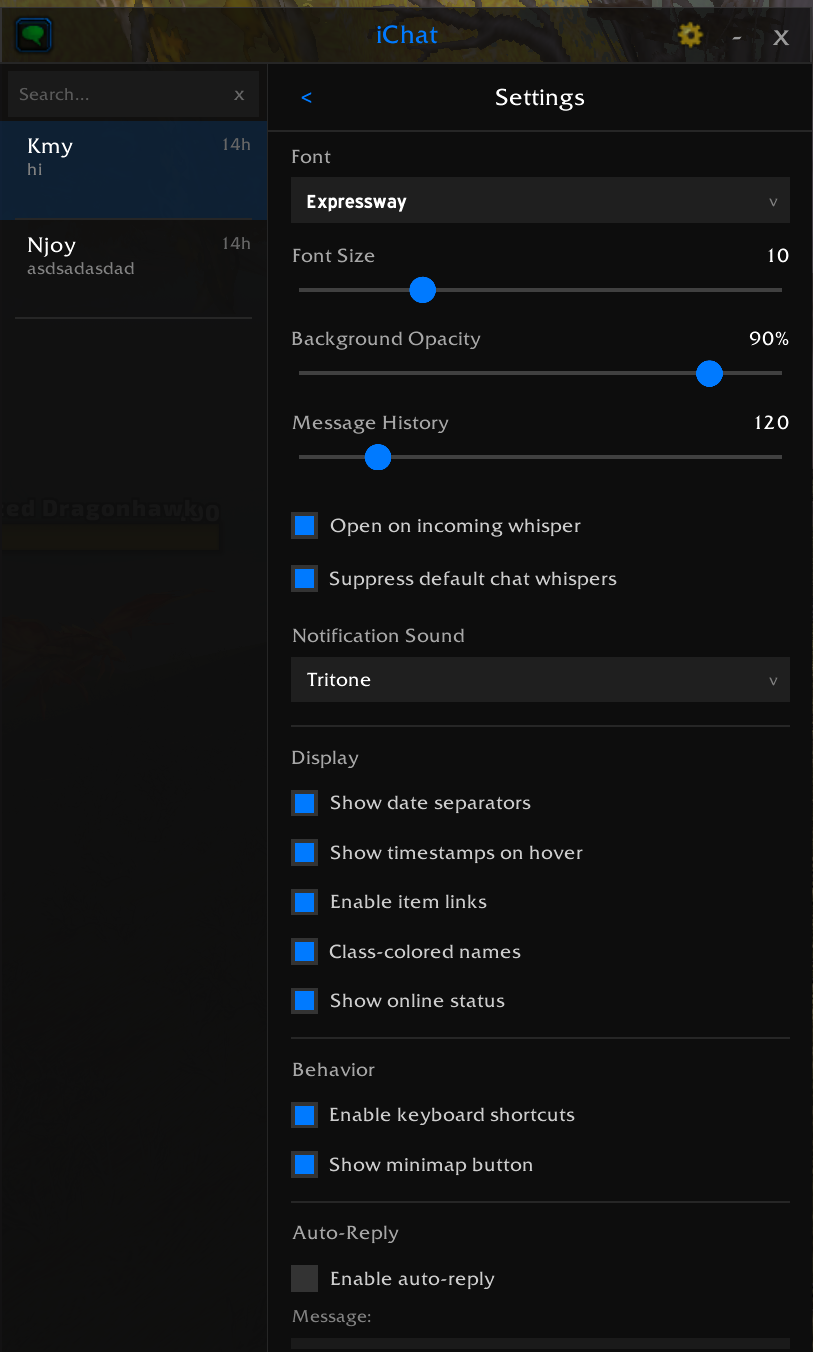
Settings Panel
- Settings panel font size slider (8–14) — adjust the settings UI text size with smooth live preview
- Font selection dropdown — 6 built-in WoW fonts, plus all LibSharedMedia fonts if available
- Font size slider (8–16) for chat bubbles
- Background opacity slider (30%–100%)
- Message history slider (50–500 messages per conversation)
- Open on incoming whisper toggle
- Suppress default chat whispers toggle
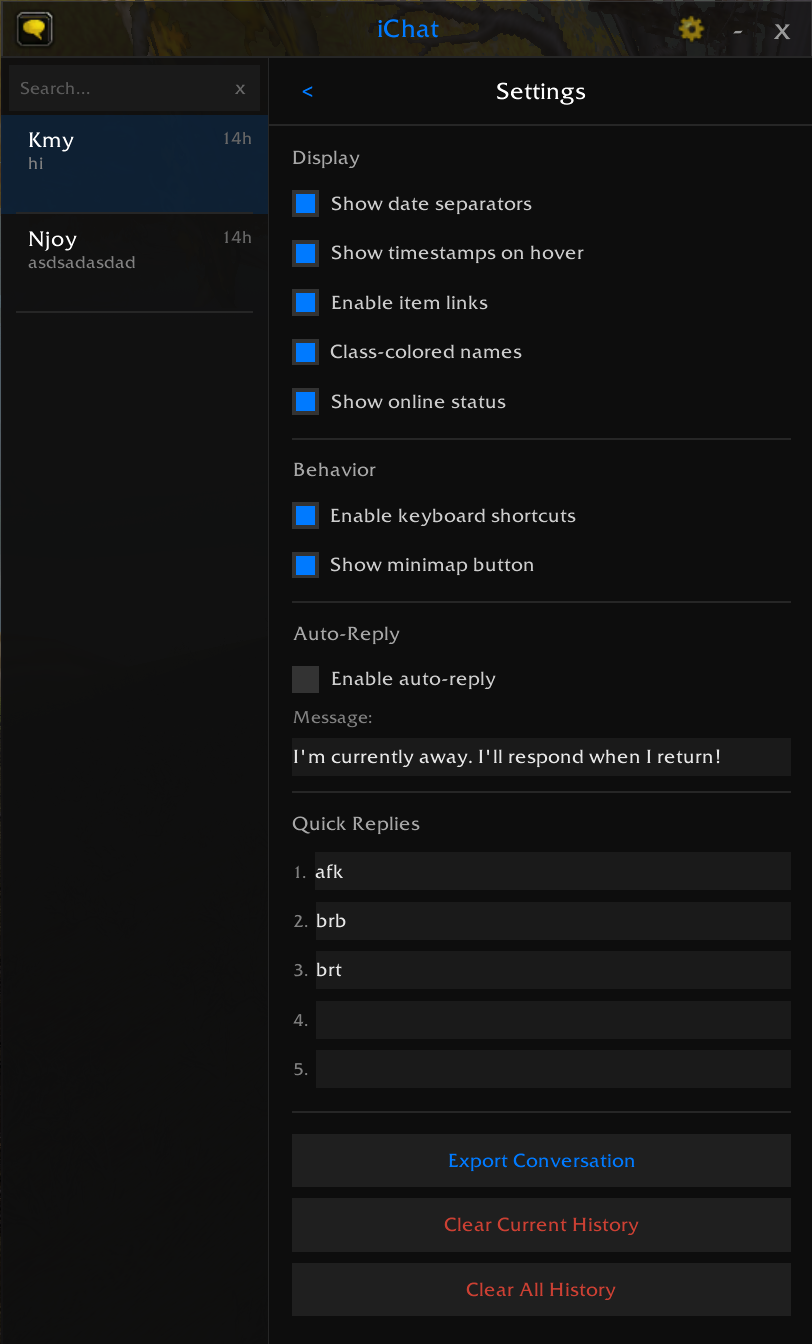
- Display toggles — date separators, hover timestamps, item links, class colors, online status
- Window scale slider (0.5x–2.0x) — scales everything including fonts, icons, and buttons
- Behavior toggles — keyboard shortcuts, minimap button, hide in combat, auto-fade, fade while moving, typing indicator, online/offline notifications, ElvUI theme, shared account
- Auto-reply section — enable/disable with custom message editor
- Quick reply editor — configure up to 5 quick reply messages
- Export conversation — copy conversation history as plain text
- Clear history — per-conversation or all conversations (with confirmation)
ElvUI Integration
- Auto-detect ElvUI and match backdrop, border, and accent colors
- ElvUI DataText — "iChat" appears in the DataText list (right-click any ElvUI info panel → select "iChat"). Shows unread count with ElvUI's value color. Left-click toggles the window, right-click opens settings.
- Only overrides font if you haven't explicitly chosen one
- Toggle in Settings → Behavior
WeakAuras Integration
Custom events for WeakAuras triggers:
ICHAT_WHISPER_RECEIVED(sender, text)ICHAT_WHISPER_SENT(target, text)ICHAT_FRIEND_ONLINE/ICHAT_FRIEND_OFFLINE(name)ICHAT_UNREAD_CHANGED(total)
Auto-Fade
- Window fades to 25% opacity after 1.5 seconds when the mouse leaves
- Instantly restores when hovering anywhere on the window (chat area, input box, conversation list — not just the title bar)
- Fade is disabled while the settings panel or emoji picker is open
- Fade while moving — optional setting to fade when your character moves, restores when stopped
- Can be fully disabled in Settings → Behavior → "Auto-fade when mouse leaves"
LibSharedMedia Integration
- Optional dependency — works without it, enhanced with it
- When LibSharedMedia-3.0 is available (bundled with ElvUI, etc.), all registered fonts and sounds appear in iChat's settings dropdowns
Installation
Download and extract to your AddOns folder. The same folder works for all WoW versions — the client automatically loads the correct TOC file:
Version AddOns Path TOC File Classic Era _classic_era_/Interface/AddOns/iChat/iChat_Vanilla.tocTBC Anniversary _anniversary_/Interface/AddOns/iChat/iChat.tocRetail _retail_/Interface/AddOns/iChat/iChat-Mainline.tocRestart WoW or
/reloadif already in-game.
Usage
| Command | Action |
|---|---|
/ichat |
Toggle the iChat window |
/ichat clear |
Clear the active conversation's history |
/ichat export |
Export current conversation to copyable text |
/ichat scale <n> |
Set window scale (0.5–2.0) |
/ichat emoji |
Print all available emoji shortcodes to chat |
/ichat autoreply |
Toggle auto-reply on/off |
/ichat search <text> |
Search conversations |
/ichat version |
Show version and storage mode |
Sending Messages
- Click a conversation on the left, or use the compose button (chat bubble icon) to start a new one
- Type in the input box and press Enter to send
- Click the smiley button to open the emoji picker
- Use quick reply buttons for canned responses
Keyboard Shortcuts
- Custom keybind — bind "Toggle iChat Window" in WoW's Options → Key Bindings → iChat
- Tab — cycle to next conversation
- Shift+Tab — cycle to previous conversation
- Escape — close the window
Context Menu
Right-click any conversation in the list for:
- Pin / Unpin — keep at top of list
- Mute / Unmute — suppress notification sounds
- Add / Edit Note — personal note for the contact
- Delete Conversation — remove conversation and history
Emoji Shortcodes
Type :name: in your message — it renders as an inline icon in the chat bubble.
Smileys: :grin: :smile: :laughing: :joy: :wink: :heart_eyes: :sunglasses: :thinking: :cry: :angry: :skull: :party: and more
Gestures: :thumbsup: :thumbsdown: :wave: :pray: :muscle: :clap: :ok_hand:
Symbols: :heart: :fire: :star: :100: :check: :x: :sparkles: :boom: :eyes:
Objects: :swords: :shield: :trophy: :crown: :gem: :beer: :dragon: :ghost: :rocket:
Saved Variables
iChat uses two storage modes:
ICHAT_DATA(per-character) — default, each character has separate historyICHAT_ACCOUNT(account-wide) — optional, toggle "Share conversations across characters" in settings
Stored data includes:
- Conversation history — messages, timestamps, read state, delivery status
- Settings — font, font size, opacity, sound, quick replies, display/behavior toggles, auto-reply
- Pinned conversations — which contacts are pinned to the top
- Contact notes — personal notes per contact
- Muted contacts — contacts with suppressed notifications
Data persists across sessions. Use /ichat clear or the settings panel to manage history.
Optional Dependencies
| Addon | What it adds |
|---|---|
| Emoji-Core | Unicode emoji autocomplete in the input box, additional emoji rendering |
| LibSharedMedia-3.0 | Extra fonts and sounds from other addons appear in settings |
| LibDBIcon-1.0 | Minimap button manager integration (MinimapButtonButton, etc.) |
| ElvUI | Auto-applies ElvUI's color theme to iChat |
| WeakAuras | Expose iChat events for custom triggers |
| Titan Panel | Native iChat plugin in the Titan bar with unread count |
Compatibility
- Classic Era (1.15.x) — Interface 11508
- TBC Classic Anniversary (2.5.x) — Interface 20505
- Retail (12.x Midnight) — Interface 120001
Known Issues
- WIM conflict: If WoW Instant Messenger (WIM) is installed, iChat automatically disables "Suppress default chat whispers" to avoid double-suppression.
- Typing indicator is local-only — only shows when you are typing. Cross-addon typing detection would require addon-to-addon messaging (both parties need iChat).
- ElvUI skin may not apply if ElvUI loads after iChat — a 1-second delay is used, but edge cases are possible. Toggle the setting off/on in that case.
Credits
- Author: paradosi (Dreamscythe)
- Emoji: Google Noto Emoji (Apache 2.0 License)
- Emoji Integration: Emoji-Core by KittenBall — optional emoji autocomplete and rendering library
用户评价
暂无 / 5,0 条评价相关推荐
继续看看这些内容
