插件中文资料库
中文说明、玩家点评、适用场景和替代推荐,方便快速判断是否适合你。
- 副本、团队本和大秘境战斗提醒
- 界面布局、头像框、姓名板和动作条优化
 Details! Mythic+ Scoreboard
 BagSync
 RightClickSelfCast
O Item Level (OiLvL) 插件下载与使用指南
本页整理了 O Item Level (OiLvL) 的功能用途、适用人群、安装方法和常见问题,方便玩家快速判断是否需要安装。
适合谁用
O Item Level (OiLvL) 是一款 团队框架 / 数据代理 / 鼠标提示 / 聊天与通讯 / 公会 类插件,适合需要优化界面、提升操作效率或补充游戏信息提示的魔兽世界玩家。
基本信息
- 插件作者:olzenkhaw0192
- 插件分类:团队框架 / 数据代理 / 鼠标提示 / 聊天与通讯 / 公会
- 适配版本:12.1.0,12.1.5
- 累计下载:36
安装方法
- 点击上方下载按钮获取 O Item Level (OiLvL)插件文件。
- 解压后将插件文件夹放入 World of Warcraft/_retail_/Interface/AddOns 目录。
- 重启游戏或在角色界面点击插件,确认 O Item Level (OiLvL) 已启用。
- 如果插件不生效,请检查版本是否匹配,或关闭同类冲突插件后重试。
使用建议
O Item Level (OiLvL) 安装后建议先在角色界面确认已启用,进入游戏后根据插件提供的命令、小地图按钮或设置面板进行调整。如遇到报错,可先单独启用该插件排查冲突。
O Item Level (OiLvL) 常见问题
O Item Level (OiLvL) 适合需要 团队框架 / 数据代理 / 鼠标提示 / 聊天与通讯 / 公会 类功能的玩家,特别是希望提升游戏便利性、界面管理或战斗信息获取效率的用户。
下载后解压到 Interface/AddOns 目录,然后重启游戏并在角色界面启用插件。
常见原因是目录多套一层、游戏版本不匹配、依赖插件缺失或同类插件冲突。
可以查看本页的替代插件推荐和相关插件区域,按下载量和分类选择同类工具。
插件 AI 问答
可以问:这个插件正式服能用吗、和 DBM 冲突吗、怎么设置、有没有替代插件。
O Item Level (OiLvL) 是一款魔兽世界插件,主要用于法术、物品 ID 和提示信息显示、副本、团本、大秘境或钥石辅助。建议根据自己的版本和插件环境先测试兼容性。
插件用途
O Item Level (OiLvL) 主要面向需要聊天与通讯功能的玩家,用来改善游戏体验、减少重复操作或补充默认界面没有直接提供的信息。
适用场景
- 法术、物品 ID 和提示信息显示
- 副本、团本、大秘境或钥石辅助
使用建议
安装后建议先在角色选择界面或插件管理器中确认已启用,再进入游戏测试是否与现有整合包、WA 和其他插件冲突。如遇报错,可以先禁用同类插件排查。
Show Item Level and raid progression of player and all members in instance / party / raid. Show item level of items in bags.
/oi or left-click OiLvL minimap button to show OiLvL Window(picture above)
Right-click the icon or right-click OiLvL minimap button to show OiLvL configuration panel.
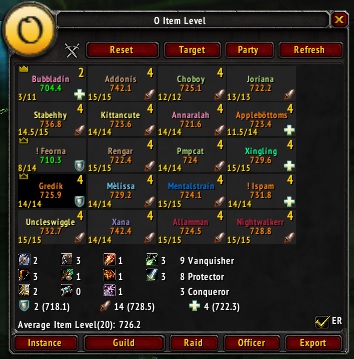

Latest New Features:
- /oimatchcolor to toggle color of item level in character window, inspection window and bags.
- Show item level of items in bags. /oibi to show / hide the item level in bags.
- Set Key binding to show raid progression when mouseover target frame in raid / party. The key binding can be set in WoW Key Bindings menu, under AddOns section.
- Show relics' item level in Character Window and Inspection Window
- Show enchant effect (in green color) and gem effect (in white color) of items in character frame and inspection frame. Yellow ! = no enchant. Blue ! = no gem. Click enchant icon in character frame or inspection frame to show / hide this feature.
- Show average item level and number of fully upgraded gears / total upgradable gears below level text in Character frame and Inspect Frame.
- Show number of fully upgraded gears / total upgradable gears in bottom left of unit frame in OiLvL frame.
- Show upgrade level on topright of item level of an item in character frame.
- Show set bonus (2 or 4) on topright of unitframe in OiLvL window and minimap button tooltips.
- Minimap button tooltips.
- * Click the item level of a raider will show the gears. Click again will hide them.
- * Left click the name of a raider will rescan the item level.
- * Highlight the name of the raiders if they are out of range of gear inspection.
- * The background color of item level of a raider will change if there is any gear is not enchanted / socketed
- * Middle click the name of a raider will mark the raider.
- * New pin option to pin / unpin the tooltips.
- * Highlight the item level of HFC tiers in gear list (mythic: purple, heroic: blue, normal: green)
Features:
- SHOW and SEND equipped item level of ALL raiders to Target / Party / Instance / Guild / Raid / Officer.
- SHOW and SEND average item level of ALL raiders to Target / Party / Instance / Guild / Raid / Officer.
- SHOW and SEND average item level of tanks, damagers and healers to Target / Party / Instance / Guild / Raid / Officer.
- SHOW WoD Raid progression of all raiders in party / instance / raid to Target / Party / Instance / Guild / Raid / Officer on tooltips.
- SHOW and SEND WoD Raid progression Details of ONE raider to Target / Party / Instance / Guild / Raid / Officer.
- SHOW and SEND Missing enchants and missing gems of ALL raiders to Target / Party / Instance / Guild / Raid / Officer.
- SAVE all gears of raiders and show them in OiLvL Inspection Frame.
- Alt left click the unit frame in OiLvL frame. will show all gears equipped by the raider in raid / party in OiLvL Inspection Frame 1.
- Ctrl left click the unit frame in OiLvL frame. will show all gears equipped by the raider in raid / party in OiLvL Inspection Frame 2.
- Show respective gear equipped by a raider who /roll in chat frame by using /oir command.
- Add Cache feature. Left click OiLvL frame icon will show the latest 100 raiders' name, class and item level. Left click the name of a raider will show his/her gears in OiLvL Inspection Frame 1. Right click the name of a raider will show his/her gears in OiLvL Inspection Frame 2. Scroll down to the bottom of Cache Window, Click Disable / Enable to disable / enable this feature. It is enable by default.
- Add Data Broker (Left click: OiLvL frame, left click again will hide it. Right click: OiLvL Configuration Panel. Middle click: OiLvL Alt frame, middle click again will hide it. Mouseover: OiLvL List Frame)
- ALT-Click an item in Loot Frame will show OiLvL Roll Frame and if the user is Raid Leader / Assistant, it will also type in raid channel: <itemLink> Roll, then user can press enter (or type anything such as ms and enter) to send out the raid message. <itemLink> is the link of the item.
- Save all alts' equipments. Equipments of an alt will be saved after login the alt. Middle click the icon of OiLvL frame will list all alts. Left click the name of an alt will show the equipments on OiLvL Inspection Frame 1; right click on OiLvL Inspection Frame 2.
- Best Enchant Option (send also raiders who have used low enchant /gem in enchantment reminder). Enable it in OiLvL Configuration Panel (/oicfg).
- Right Click Target / Party / Instance / Guild / Officer / Raid / Export will send only average item level of tanks, healers and damagers.
- Middle Click Target / Party / Instance / Guild / Officer / Raid / Export will send only raiders who have missing enchant / gem.
- Show number of players of each class in raid / party in 3 lines, sorted according to "vanquisher / protector / conqueror" tier token.
- Show Cutting Edge and AOTC achievement in Raid Progression Detail.
- Detect legendary ring. Display item level in brown color if the raider equips legendary ring.
- /oir slash command
- /oiraltc off - turn off roll feature
- /oiraltc on - turn on roll feature
When moving the mouse over a unit frame in OiLvL frame, it will show:
- Specialization of the raider (the picture above show that Xingling is a Windwalker monk).
- Missing enchant of the raider (the picture above show that Xingling does not enchant her ring in 2nd finger slot)
- Missing gem of the raider (the picture above show that Xingling does not gem her trinket in 2nd trinket slot)
- Raid Progression Details (the pictures above show that Xingling have 13/13H and 11/13N progression in HFC and also the number of kills of all bosses in HFC in all 4 difficulties).
- Click the raid name (in the red rectangle) will show respective raid progression details.
Raid Progression Details of ONE raider can be sent by user to Guild / Raid / Officer / Target by clicking the word, Guild / Raid / Officer / Target in Raid Progression Details.
Click the name of raider will show an editbox to let the user to press Ctrl+C to copy Raid Progression.
Middle click on the unit frame will mark the unit frame. User can mark all the unit frames. Click again will unmark it. If any of the unit frame is marked, when click the buttons (Target, Party, Instance, Guild, Raid, Officer), it only send the marked unit frame's item level and enchantment reminder (if ER is checked). All marker are reset if any changes happen to the raid or group.
The Reset button will unmark all unit frames.
Alt-click on an unit frame (which has displayed the item level of the raider) in OiLvL frame will show OiLvL Inspection Frame which display all gears equipped by the raider. If the item level of the raider has not been displayed, alt-click will do nothing.
Alt left click open 1st OiLvL Inspection Frame
Ctrl left click open 2nd OiLvL Inspection Frame
Both frames are draggable.
/oir [itemLink] any text
OiLvL Roll Frame
[itemlink] - the link get from shift-click any gear dropped by boss in any raid
any text - mean any text such as MS > OS
Result:
for example:
/oir [Six-Eyed Band] MS > OS
If the user is raid leader, it will send a chat message to raid:
Roll 695 [Six-Eyed Band] MS > OS
and display Roll 695 [Six-Eyed Band] MS > OS in OiLvL Roll Frame.
When any raider /roll
for example:
Xingling rolls 67 (1-100)
it will show the 2 rings (according to the example above) equipped by Xingling. It will not show the equipped gear if OiLvL has not yet get the raider's item level.
for example:
670 [Golden-Tongued Seal] and 690 [Spellbound Solium Band of the Immortal Spirit]
If the user is not raid leader, /oir command still can be used, but will not send the message to raid to avoid spamming.
User can alt-click the itemLink (text get from shift-click any gear) when raider leader ask for roll in chat. It will display
Roll [itemLink]
When any raider /roll, it will show the respective gear equipped by the raider who /roll if OiLvL has get the item level of the raider.
The Roll Frame will sort the roll automatically.
Display name, role and item level in table
- Mouseover the icon of OiLvL frame will display name, role and item level of raiders in table if their item level has been saved.
- Click Name, Role or Item level to sort from ascending to descending or descending to ascending.
Notes:
- Obtaining the correct item level take at least 1 second per person, it will be longer when the server is busy. Once item level is shown, there is no way to detect the equipment change of raider (except player) and update automatically.
- It will only check equipped item level during out of combat.
- When user target a character AND mouseover the target, the tooltips will show the target's specialization, item level and raid progression. It mean the user MUST target the person 1st so that the tooltips will show item level and raid progression. It is done to avoid lag issues.
- When inspect a target, the inspection window tends to show nothing because OiLvL is doing inspection on all raiders in party / raid. To force inspection window to show gears, user must inspect the target again ASAP. User can ctrl+right click the unit in OiLvL frame to inspect the target faster. User must at least inspect x 2 to force the inspection windows to show gears. It means that when user ctrl+right click the unit in OiLvL frame, the inspection window is displayed, but no gear is shown. Ctrl+right click the unit again will normally show the gears.
Display item level of your items on the character screen. Color is based on quality of the item (Poor : gray, Common : white, Uncommon : green, Rare / Superior : blue, Epic : purple, Legendary : orange, Artifact : golden yellow, Heirloom : light yellow).
Command:
- /oi or /oilvl Show the O Item Level's frame which is draggable by mouse.
- /oicfg or click OiLvL frame's icon to display OiLvL configuration frame.
- /oiroll or /oir Show OiLvL Loot Frame.
- /oialt or /oia Show OiLvL Alt Frame.
- /oicache or /oic Show OiLvL Cache Frame.
Buttons:
- Reset - Unmark all unit frames in OiLvL frame.
- Refresh - Clear all item levels and refresh the built-in party/raid frames.
- Target - Send all raiders' item level to a target through whisper.
- Party - Send all raiders' item level to party chat.
- Instance - Send all raiders' item level to instance chat.
- Guild - Send all raiders' item level to guild chat.
- Officer - Send all raiders' item level to guild officer.
- Raid - Send all raiders' item level to raid chat.
- Export - Show an EditBox so that the user can copy all raiders' item level by pressing Ctrl+C. Press ESC will hide the EditBox.
- Right Click Target / Party / Instance / Guild / Officer / Raid / Export will send only average item level of tanks, healers and damagers.
- Middle Click Target / Party / Instance / Guild / Officer / Raid / Export will send only raiders who have missing enchant / gem.
The built-in raid frames:
- The built-in party / raid frames will show names, item levels, roles (Tank, Healer and Damager) and ranks (Party Leader, Raid Leader and Raid Assistant).
- The change of color of the current raid frame indicate the addon is inspecting the gears of the raider.
- Black background means the raider cannot be inspected because of out of range. It can be reinspected by clicking the frame again when the raider is within 40yd range and the user is out of combat.
- The raid frames will be auto-refreshed when there is any raider leaving / joining the party / raid.
- Item level in red color means that the raider have empty gear slot.
- Display average item level of all the members in party / raid.
- When moving the mouse over a unit frame in OiLvL frame, it will show tooltips of the current unit.
- Right click on the unit frame will target the unit.
- Ctrl+Right click on the unit frame will target and inspect the unit.
- Middle click on the unit frame will mark the unit frame. User can mark all the unit frames. Click again will unmark it. If any of the unit frame is marked, when click the buttons (Target, Party, Instance, Guild, Raid, Officer), it only send the marked unit frame's item level and enchantment reminder (if ER is checked). All marker are reset if any changes happen to the raid or group.
- Check miss enchant on shoulder, back, chest, wrist, hand, legs, feet and weapons, if any of them is not enchanted, it will add "!" before the unit's name.
- Check missing gems, if one of the gem slots is not gemmed, it will add "!" before the unit's name.
- All unit frames are disable during in combat.
All inspection is only done during out of combat. During combat, no inspection is done and all buttons are unclickable except Guild, Officer, Raid, Instance, Party and Target buttons. Refresh button is hidden during combat.
Tooltips
- The red number of item level means the data transfer from the server is not enough. The user can move the mouse over the character again or just wait about 1 to 2 seconds to get correct item level.
- Let say a raider have 7/7 LFR, 7/7 Normal, 7/7 Heroic and 3/7 Mythic Highmaul progression, tooltips only show 2 highest difficulty: 7/7 Heroic and 3/7 Mythic.
- Let say a raider have 7/7 LFR, 5/7 Normal, 3/7 Heroic and 0/7 Mythic Highmaul progression, tooltips only show 2 highest difficulty: 5/7 Normal, 3/7 Heroic.
Configuration of O Item Level frame can be done in World of Warcraft Interface Options Addons panel.
If you find any phrase / word in the addon that need better translation please submit a ticket (http://wow.curseforge.com/addons/o-item-level/create-ticket/) and provide better translation here (Please remember to login your curse account).
I would like to thank the following people who help on the translation:
Protosama and loahn - frFR, marcocio and DocBerto65 - itIT, kisswow and yuk6196 - koKR, petpu - ruRU, BNSSNB - zhTW, FireEmerald - deDE, Bombtrap and Gaxn - ptBR, BakuraExel - esMX and esES
CurseForge: https://www.curseforge.com/wow/addons/o-item-level用户评价
暂无 / 5,0 条评价相关推荐
继续看看这些内容
