插件中文资料库
中文说明、玩家点评、适用场景和替代推荐,方便快速判断是否适合你。
- 背包、银行和物品整理
- 界面布局、头像框、姓名板和动作条优化
 Details! Mythic+ Scoreboard
 BagSync
 TankMD Misdirect
LunaBags 插件下载与使用指南
本页整理了 LunaBags 的功能用途、适用人群、安装方法和常见问题,方便玩家快速判断是否需要安装。
适合谁用
LunaBags 是一款 背包与库存 / HUD界面 类插件,适合需要优化界面、提升操作效率或补充游戏信息提示的魔兽世界玩家。
基本信息
- 插件作者:Wuild
- 插件分类:背包与库存 / HUD界面
- 适配版本:4.4.2,3.4.5,1.15.8,2.5.5,5.5.4
- 累计下载:0
安装方法
- 点击上方下载按钮获取 LunaBags插件文件。
- 解压后将插件文件夹放入 World of Warcraft/_retail_/Interface/AddOns 目录。
- 重启游戏或在角色界面点击插件,确认 LunaBags 已启用。
- 如果插件不生效,请检查版本是否匹配,或关闭同类冲突插件后重试。
使用建议
LunaBags 安装后建议先在角色界面确认已启用,进入游戏后根据插件提供的命令、小地图按钮或设置面板进行调整。如遇到报错,可先单独启用该插件排查冲突。
LunaBags 常见问题
LunaBags 适合需要 背包与库存 / HUD界面 类功能的玩家,特别是希望提升游戏便利性、界面管理或战斗信息获取效率的用户。
下载后解压到 Interface/AddOns 目录,然后重启游戏并在角色界面启用插件。
常见原因是目录多套一层、游戏版本不匹配、依赖插件缺失或同类插件冲突。
可以查看本页的替代插件推荐和相关插件区域,按下载量和分类选择同类工具。
插件 AI 问答
可以问:这个插件正式服能用吗、和 DBM 冲突吗、怎么设置、有没有替代插件。
LunaBags 是一款魔兽世界插件,主要用于背包、银行、专业制造或物品整理、插件库、数据接口或依赖支持。建议根据自己的版本和插件环境先测试兼容性。
插件用途
LunaBags 主要面向需要背包与库存功能的玩家,用来改善游戏体验、减少重复操作或补充默认界面没有直接提供的信息。
适用场景
- 背包、银行、专业制造或物品整理
- 插件库、数据接口或依赖支持
使用建议
安装后建议先在角色选择界面或插件管理器中确认已启用,再进入游戏测试是否与现有整合包、WA 和其他插件冲突。如遇报错,可以先禁用同类插件排查。
LunaBags
LunaBags is a World of Warcraft Classic inventory addon that replaces the default bag and bank views with a single-window layout, sorting, per-character cached item views, category sections, and tooltip item counts.
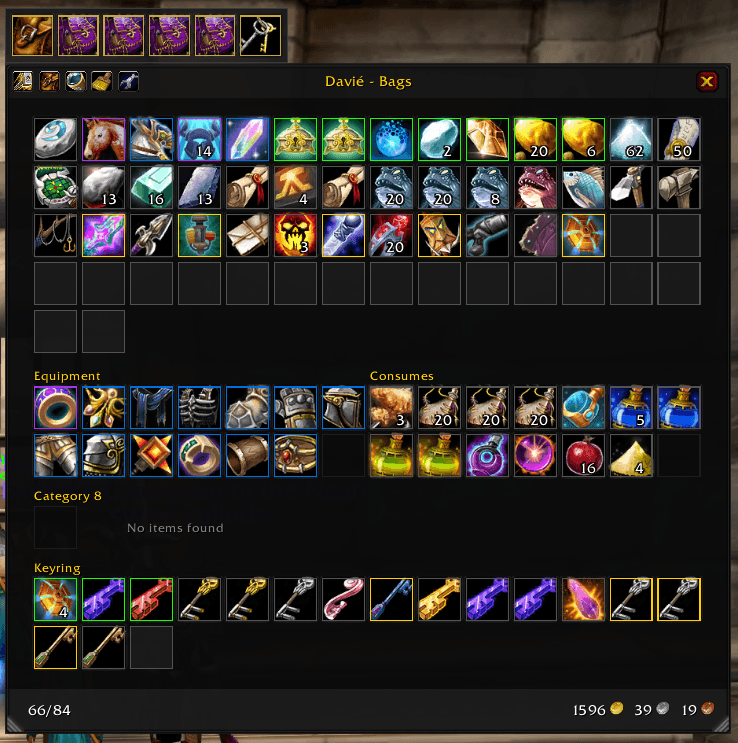
Basic Use
- Press
Bor use/lb opento open the bag window. - Visit a banker to open the bank window.
- Drag the top bar to move a window.
- Use the wrench button in the title bar, or run
/lb, to open LunaBags settings. - Use the magnifying glass to show or hide search.
- Use the backpack button to show or hide the bag rail.
- The bottom status bar shows used slots, such as
38/40, on the left and money on the right.
Bag and bank item buttons keep Blizzard's normal item behavior, so clicking, using, dragging, splitting, and bank movement should work like the default UI.
Slash Commands
/lbor/lunabagsopens settings./lb open,/lb close,/lb togglecontrols the bag window./lb view Name-Realmshows cached bags for another character./lb view currentreturns to the current character./lb scanforces a character cache scan./lb debugtoggles debug display./lb enableand/lb disabletoggle the addon./lb windowopens the extra style/test window.
Configure The UI
Open /lb, then use:
- UI > Appearance for shared bag and bank colors, opacity, item frame color, border size, stack-count text size, and cooldown text size.
- UI > Bags for bag window width, max height, item size, spacing, frame scale, lock position, and split rows.
- UI > Bank for bank window width, max height, item size, spacing, frame scale, lock position, and reset position.
- Plugins for quality borders and trash item markers.
- Profiles for AceDB profile switching, copying, and resets.
Some settings are per character, including split bag sections and locked sort slots.
Sorting
Click the broom icon to sort. Right-click the broom in the bag window for lock-slot tools.
Sorting settings live in /lb under Sorting:
- Reverse Slot Order places the first sorted items at the bottom-right end of the bag order.
- Priority Item IDs is a comma-separated list matched by the Priority sort rule. By default this includes the hearthstone item ID
6948. - Sort Rules are evaluated in order. Move rules up or down to change priority.
- Each rule can be enabled, removed, and set to ascending or descending.
Default rules prioritize priority items, then quality, item level, class ordering, item class/subclass, equipment location, name, item ID, and stack count.
Sorting respects:
- User-locked slots.
- Temporary item locks while the client is moving items.
- Specialty bag compatibility, such as ammo or quiver bags.
- Specialty bags first, then normal bag slots.
Locked Slots
Right-click the bag broom icon and enable Lock Slots Mode. While lock mode is active, click a slot overlay to toggle whether sorting may move that slot. Locked slots show a red cross only while lock mode is active.
Use Clear Locked Slots from the same right-click menu to remove all locked slots for the current character.
Categories
Categories create named sections inside the bag or bank window. They are configured in /lb under Categories.
Category settings are profile-scoped and per character.
- Choose Category Scope:
- Bags for inventory categories.
- Bank for bank categories.
- Enable Category Sections.
- Click Add Category.
- Name the category and configure its rules.
- Move categories up or down to control priority.
Category matching details:
- Categories are checked from top to bottom.
- The first matching category wins.
- Rules inside one category are combined with AND logic. For example, choosing an armor class and a quality range means an item must satisfy both conditions.
- A category with no rules does not match anything.
Supported category rules:
- Item IDs: comma-separated item IDs.
- Quality: enable the quality rule, then set minimum and maximum quality.
- Item Classes: match broad item classes.
- Item Subclasses: available after choosing item classes.
- Equip Locations: comma-separated equip location tokens, such as
INVTYPE_HEADorINVTYPE_TRINKET. - Equipment Set Items: matches items from Blizzard Equipment Manager, ItemRack, or Outfitter when those APIs/addons are available.
- Minimum Slots: reserves visible empty slots in a category section.
- Category Columns: controls the default side-by-side category density.
- Section Columns: overrides how many item columns an individual category section uses.
Items that do not match a category remain in the normal uncategorized flow.
CurseForge: https://www.curseforge.com/wow/addons/lunabags用户评价
暂无 / 5,0 条评价相关推荐
继续看看这些内容
