插件中文资料库
中文说明、玩家点评、适用场景和替代推荐,方便快速判断是否适合你。
- 界面布局、头像框、姓名板和动作条优化
 GroupFinder
 TooltipRealmInfo
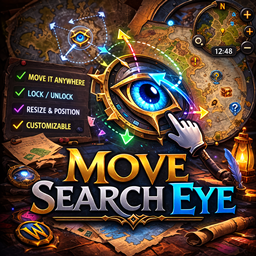 Move Search Eye – Move the Search Icon Anywhere
EasyFind 插件下载与使用指南
本页整理了 EasyFind 的功能用途、适用人群、安装方法和常见问题,方便玩家快速判断是否需要安装。
适合谁用
EasyFind 是一款 动作条 / 成就 / 背包与库存 / 其他插件 类插件,适合需要优化界面、提升操作效率或补充游戏信息提示的魔兽世界玩家。
基本信息
- 插件作者:justawower
- 插件分类:动作条 / 成就 / 背包与库存 / 其他插件
- 适配版本:12.0.5
- 累计下载:0
安装方法
- 点击上方下载按钮获取 EasyFind插件文件。
- 解压后将插件文件夹放入 World of Warcraft/_retail_/Interface/AddOns 目录。
- 重启游戏或在角色界面点击插件,确认 EasyFind 已启用。
- 如果插件不生效,请检查版本是否匹配,或关闭同类冲突插件后重试。
使用建议
EasyFind 安装后建议先在角色界面确认已启用,进入游戏后根据插件提供的命令、小地图按钮或设置面板进行调整。如遇到报错,可先单独启用该插件排查冲突。
EasyFind 常见问题
EasyFind 适合需要 动作条 / 成就 / 背包与库存 / 其他插件 类功能的玩家,特别是希望提升游戏便利性、界面管理或战斗信息获取效率的用户。
下载后解压到 Interface/AddOns 目录,然后重启游戏并在角色界面启用插件。
常见原因是目录多套一层、游戏版本不匹配、依赖插件缺失或同类插件冲突。
可以查看本页的替代插件推荐和相关插件区域,按下载量和分类选择同类工具。
插件 AI 问答
可以问:这个插件正式服能用吗、和 DBM 冲突吗、怎么设置、有没有替代插件。
EasyFind 是一款魔兽世界插件,主要用于其他插件相关功能。建议根据自己的版本和插件环境先测试兼容性。
插件用途
EasyFind 主要面向需要其他插件功能的玩家,用来改善游戏体验、减少重复操作或补充默认界面没有直接提供的信息。
适用场景
- 其他插件相关功能
使用建议
安装后建议先在角色选择界面或插件管理器中确认已启用,再进入游戏测试是否与现有整合包、WA 和其他插件冲突。如遇报错,可以先禁用同类插件排查。
EasyFind
EasyFind is WoW's Raycast/Spotlight/Alfred: a fast command bar that lets you search anything in World of Warcraft.
How to Use
Set a Search Bar keybind during the tutorial, or later in EasyFind options. Press that keybind to show and focus the search bar, type what you want, then select a result. Click anywhere outside EasyFind to close it.
Features
Main Search
Search across:
- UI panels, tabs, options, addon settings, and Blizzard settings.
- Achievements, statistics, titles, reputations, currencies, talents, abilities, and spellbook entries.
- Mounts, pets, toys, transmogs, outfits, heirlooms, gear sets, macros, bosses, loot, and bag items.
- Zones, dungeons, raids, delves, services, travel points, rares, and other map destinations.
Supported results can do more than just open a panel:
- Mount up, summon pets, use toys, equip outfits, run macros, and cast or use abilities directly from search.
- Shift-click supported abilities from results to drag them to action bars.
- Use consumables, equip gear, or alt-click supported bag items to open and highlight the item in your bags.
- Open boss and loot entries in the Encounter Journal.
- Guide to collection entries, favorite pets, rename pets, and open supported collection tools.
- Open map destinations in the Map Search tab and track or preview them from the world map.
Map Search Tab
Search from the world map with nested results built for location-first browsing:
- "This Zone" shows matches on the map currently being viewed.
- "Across the World" groups broader matches by continent and zone.
- Hover map results for POI previews, navigate between zones, place pins, and track destinations.
- The same map results can also be found from the main search bar, just without the nested map layout.
Search Tools
- Pins: Right-click a result to keep it visible before typing.
- Aliases: Add your own search terms for any supported result. Aliases are shared between normal search and map search where applicable.
- Guide mode and direct open: Learn where things live with step-by-step highlights, or open supported destinations directly.
- Quick filters: Type
@to search within a category such as pets, mounts, bags, macros, abilities, achievements, statistics, bosses, gear, currencies, reputations, talents, titles, collections, or map results. - Slash-command results: Type
/in the search bar to see supported EasyFind commands such as/resetand/resize. - Calculator: Type math directly into search, including arithmetic, trig functions, and factorials, or open the full calculator.
- Keyboard control: Use arrows, Enter, Tab, Alt+number row shortcuts, or Alt+H/J/K/L navigation.
- Context menus: Right-click results for row-specific actions such as Guide, Pin, Add Alias, favorite toggles, tracking, edit actions, and collection tools.
Options
Configure:
- Search behavior, auto-hide behavior, result placement, visible row count, font size, and Alt+number hints.
- Map Search behavior, map pins, icon sizing, tracking, recent searches, and result categories.
- Aliases, keybindings, indicator style/color, search window sizing, and reset tools.
Examples
talentsopens or guides to the Talents panel.3v3when clicked after searching takes you to the Rated Arena tab with the 3s button highlighted.@petssearches pets only, so if you wanted to search for a bee pet without non-pet options showing, you could do@pets bee.sin30 + 12/3shows an inline calculator result.
Commands
/efor/ef o: open EasyFind options./ef clearor/ef c: clear active highlights, guides, pins, and map indicators./ef resetor/ef r: reset the search position and size after confirmation./ef setup: run the tutorial again./ef bug: show the bug-report link./ef feature: show the feature-request link.
Search-bar commands are also available by typing / directly in the EasyFind search bar.
Keybinds
Available binds include:
- Search Bar
- Map Search Tab
- Clear All
Configure them in EasyFind options.
CurseForge: https://www.curseforge.com/wow/addons/easyfind用户评价
暂无 / 5,0 条评价相关推荐
继续看看这些内容
