插件中文资料库
中文说明、玩家点评、适用场景和替代推荐,方便快速判断是否适合你。
- 副本、团队本和大秘境战斗提醒
- 任务路线、地图标记和野外探索
 Details! Mythic+ Scoreboard
 Copy Anything
 BagSync
BigNoteBox 插件下载与使用指南
本页整理了 BigNoteBox 的功能用途、适用人群、安装方法和常见问题,方便玩家快速判断是否需要安装。
适合谁用
BigNoteBox 是一款 界面美化 / 其他插件 类插件,适合需要优化界面、提升操作效率或补充游戏信息提示的魔兽世界玩家。
基本信息
- 插件作者:Dukul
- 插件分类:界面美化 / 其他插件
- 适配版本:12.0.0,12.0.1,12.0.5,12.0.7
- 累计下载:0
安装方法
- 点击上方下载按钮获取 BigNoteBox插件文件。
- 解压后将插件文件夹放入 World of Warcraft/_retail_/Interface/AddOns 目录。
- 重启游戏或在角色界面点击插件,确认 BigNoteBox 已启用。
- 如果插件不生效,请检查版本是否匹配,或关闭同类冲突插件后重试。
使用建议
BigNoteBox 安装后建议先在角色界面确认已启用,进入游戏后根据插件提供的命令、小地图按钮或设置面板进行调整。如遇到报错,可先单独启用该插件排查冲突。
BigNoteBox 常见问题
BigNoteBox 适合需要 界面美化 / 其他插件 类功能的玩家,特别是希望提升游戏便利性、界面管理或战斗信息获取效率的用户。
下载后解压到 Interface/AddOns 目录,然后重启游戏并在角色界面启用插件。
常见原因是目录多套一层、游戏版本不匹配、依赖插件缺失或同类插件冲突。
可以查看本页的替代插件推荐和相关插件区域,按下载量和分类选择同类工具。
插件 AI 问答
可以问:这个插件正式服能用吗、和 DBM 冲突吗、怎么设置、有没有替代插件。
BigNoteBox 是一款魔兽世界插件,主要用于背包、银行、专业制造或物品整理、地图、区域、任务路线或交通提醒、副本、团本、大秘境或钥石辅助。建议根据自己的版本和插件环境先测试兼容性。
插件用途
BigNoteBox 主要面向需要其他插件功能的玩家,用来改善游戏体验、减少重复操作或补充默认界面没有直接提供的信息。
适用场景
- 背包、银行、专业制造或物品整理
- 地图、区域、任务路线或交通提醒
- 副本、团本、大秘境或钥石辅助
使用建议
安装后建议先在角色选择界面或插件管理器中确认已启用,再进入游戏测试是否与现有整合包、WA 和其他插件冲突。如遇报错,可以先禁用同类插件排查。

BigNoteBox
by Dukul
BigNoteBox is a fully-featured in-game notepad addon for World of Warcraft. It lets you create, organize, and surface notes without ever leaving the game. Whether you are writing down a boss strategy, tracking quest objectives, jotting down crafting materials, or keeping notes on a player, BigNoteBox keeps your information at hand and gets it in front of you at the right moment.
🚚 Migrate from other note addons
Migration currently supported from these addons (more coming):
- OneWoW
- Noteworthy II
- Take A Note
- Yet Another Notepad
- Notepad
- Notes
- TinyPad
- PurpleNotes
- SimpleNote
- Quick Notes
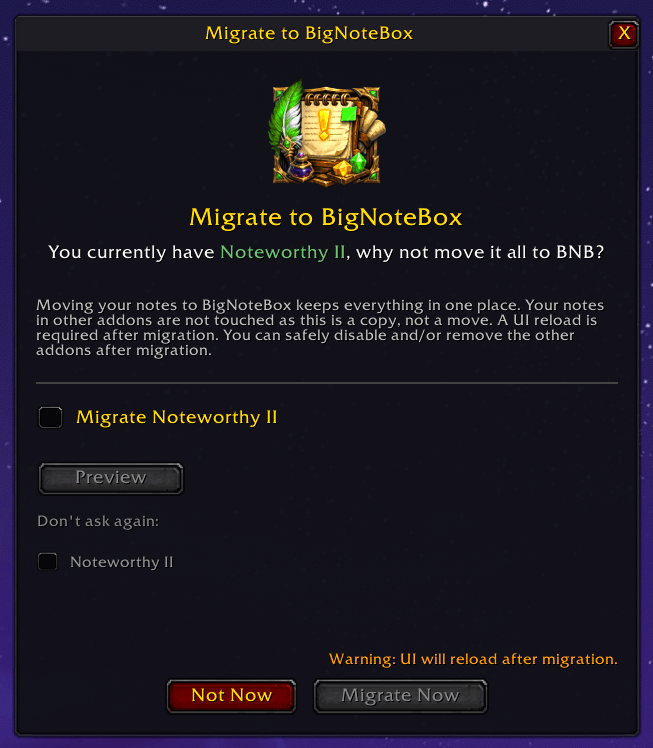
You will get a popup window when you start the game that asks if you want to migrate your notes from them to BNB. This will not remove the notes for the three other addons, only make copies of the notes in BNB. There is also a preview window so you can see what is migrated to BNB
⚡TL;DR feature list
- In-game notepad with unlimited notes
- Powerful search, tags, sorting, and pinning
- Dark/light mode and skinning system
- Sticky notes (floating, customizable)
- Every note can have tasks and sub-tasks
- Set alarms for notes, so they show up at the date and time you want
- Context-aware notes (auto show by zone, instance, or target)
- Full customization (fonts, colors, layout per note)
- Chat integration (send notes to chat, capture chat text)
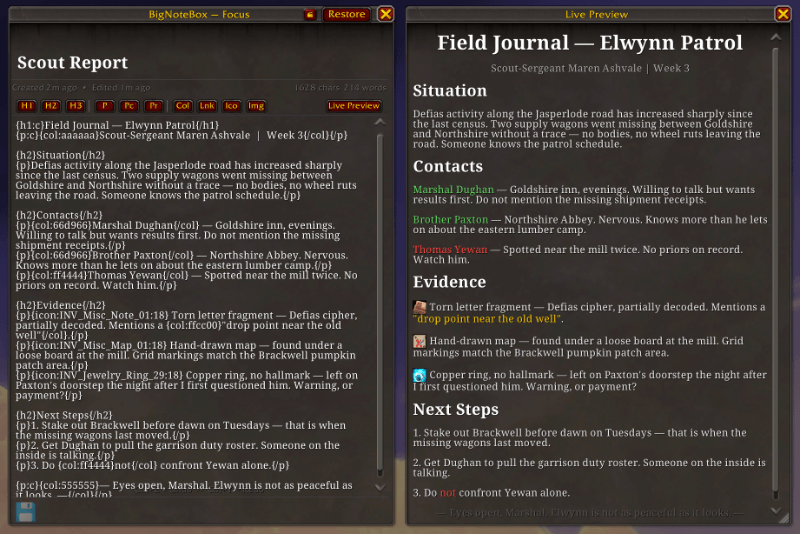
- Focus mode (distraction-free full screen editing)
- Share notes with other players!
- Global and character-specific notes (alt support)
- Import/export (Markdown/JSON) + backups
- Recycle bin with restore for deleted notes
- Note history with undo/redo and restore points
- Create notes from in-game books, scrolls, gossip, quests etc
📋 Notes & Organization
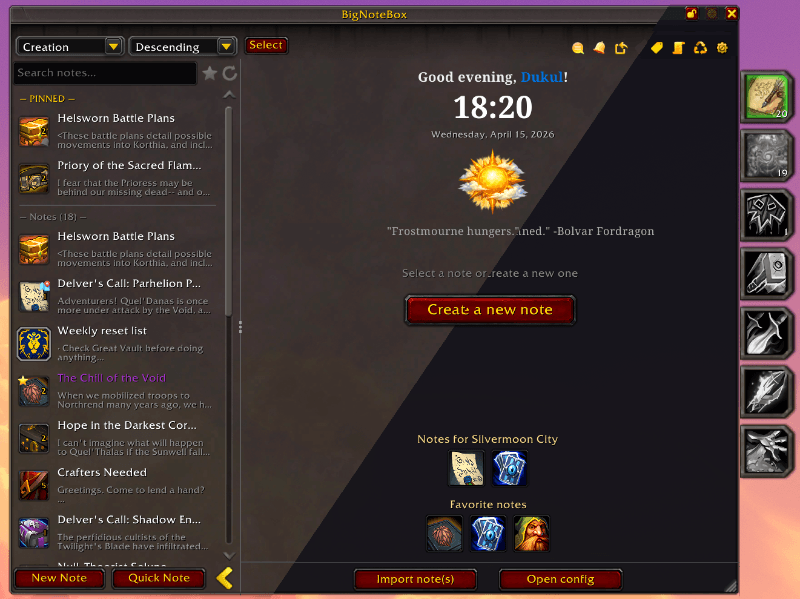
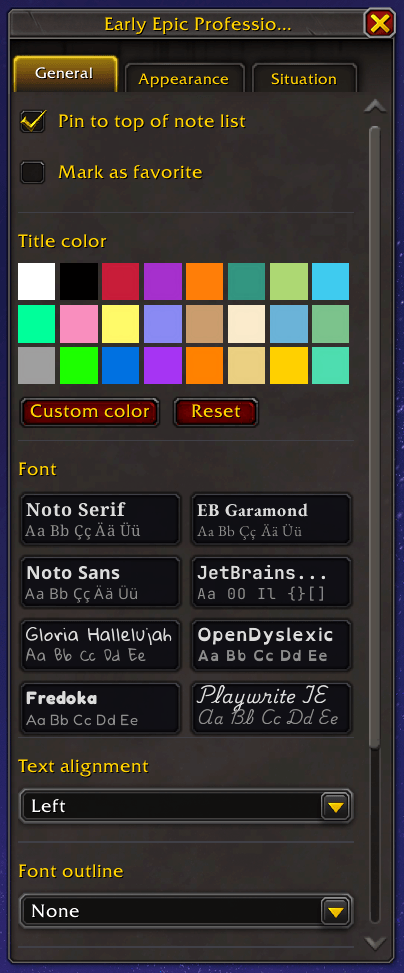
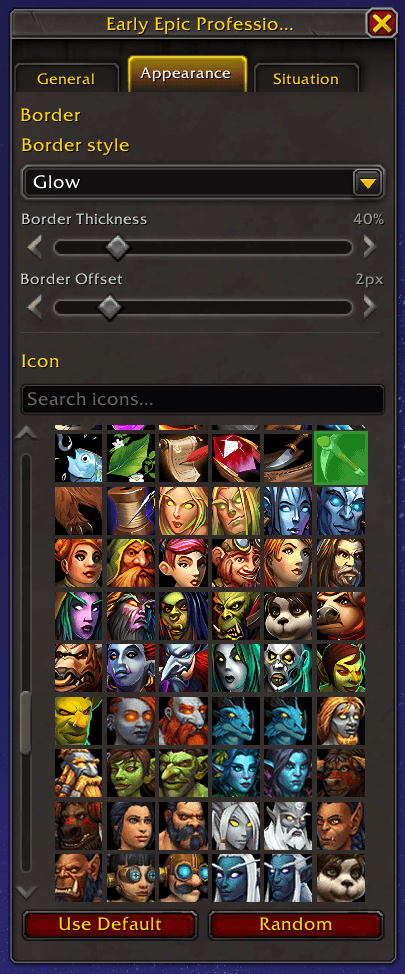
- Create unlimited notes with titles, body text, tags, and custom icons
- Search notes by title, body content, or tag
- Sort by name, date, favorites, or drag into a fully custom order
- Pin important notes to the top in custom sort mode
- Three list display modes: Normal, Compact, and Spacious
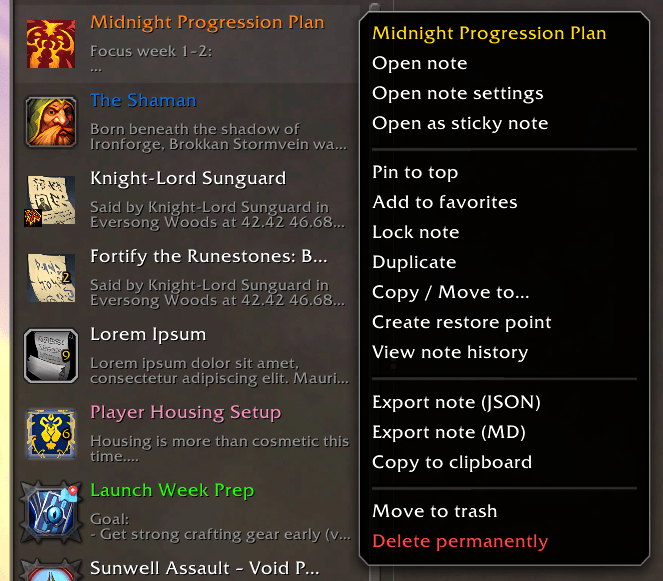
- Lock individual notes to prevent accidental edits
- Duplicate notes with one click
- Copy note content to clipboard instantly
📚 Rich notes
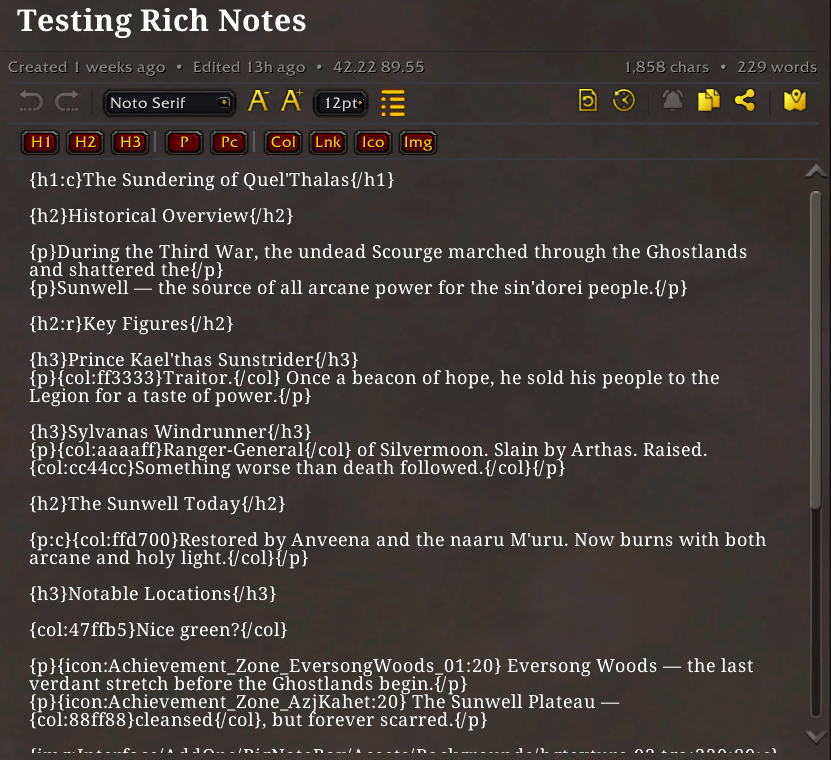
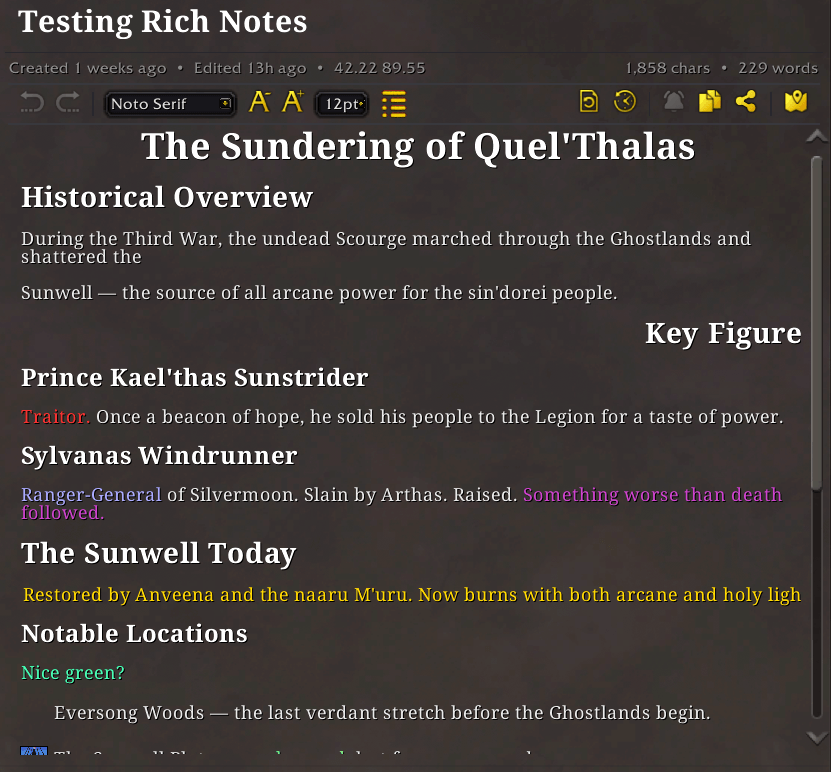
Rich Notes are an optional per-note formatting mode that lets you turn plain text into a fully laid-out document, rendered right inside the note window and on sticky notes. When you mark a note as rich, a markup toolbar appears above the editor. Write your content using simple tags, then switch to View mode to see it rendered. Sticky notes automatically render rich content when pinned to your screen, with an option to show the plain text if you need to read or copy the raw markup. Rich Notes use a tag syntax compatible with TotalRP3, so notes can be copied between the two addons without reformatting.
- Three heading levels: {h1}, {h2}, {h3} with left, centre, or right alignment
- Paragraph blocks: {p}, {p:c}, {p:r} for structured body text
- Color: {col:rrggbb}...{/col} with a color picker in the toolbar so you never need to type a hex code
- Inline icons: {icon:IconName:size} embeds any WoW game icon inline
- Images: {img:filename:width:height} displays custom .tga or .blp images; place files in the UserImages/ folder and list them by short name (mymap.tga, Horde/banner.tga)
- Links: {link*url*label} creates clickable hyperlinks; WoW item and spell links show their tooltip on hover
- Markup toolbar: one-click insertion for all tags; clicking a tag with text selected wraps the selection automatically
- Editor / View toggle: switch between editing and rendered view with a single click or a configurable keybind
- Sticky note rendering: rich notes display formatted on pinned sticky notes, with a per-sticky option to show plain text instead
- Convert anytime: right-click any note to convert it to or from rich mode; converting to plain strips all tags cleanly
- TotalRP3 tag compatibility: the markup syntax is fully compatible, so rich notes copy cleanly between both addons
Rich Notes also support a live preview window, so you can see your changes in real-time!
📌 Sticky Notes
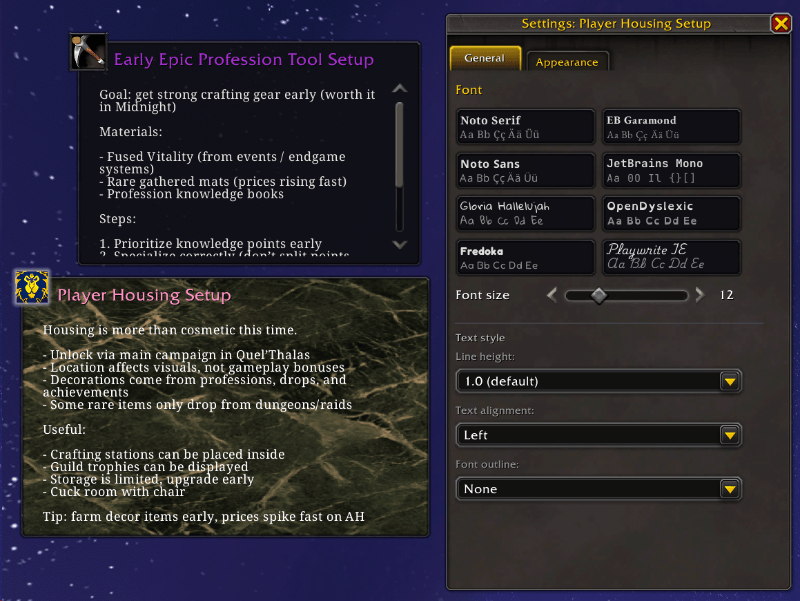
Float any note as a sticky note anywhere on your screen. Up to 8 sticky notes can be open at once, each with fully independent settings.
- Per-note font family, font size, text color, and line height
- Per-note background color with opacity control and hover fade
- Per-note border style via LibSharedMedia
- Text alignment and font outline options
- Randomize colors button for quick styling
- Minimize to a small icon tile to save screen space; click to restore
- Resize freely by dragging the corner handle
- Settings panel anchors beside the sticky and moves with it when dragged
- Curated list of background textures to choose from
🔔 Alarm system
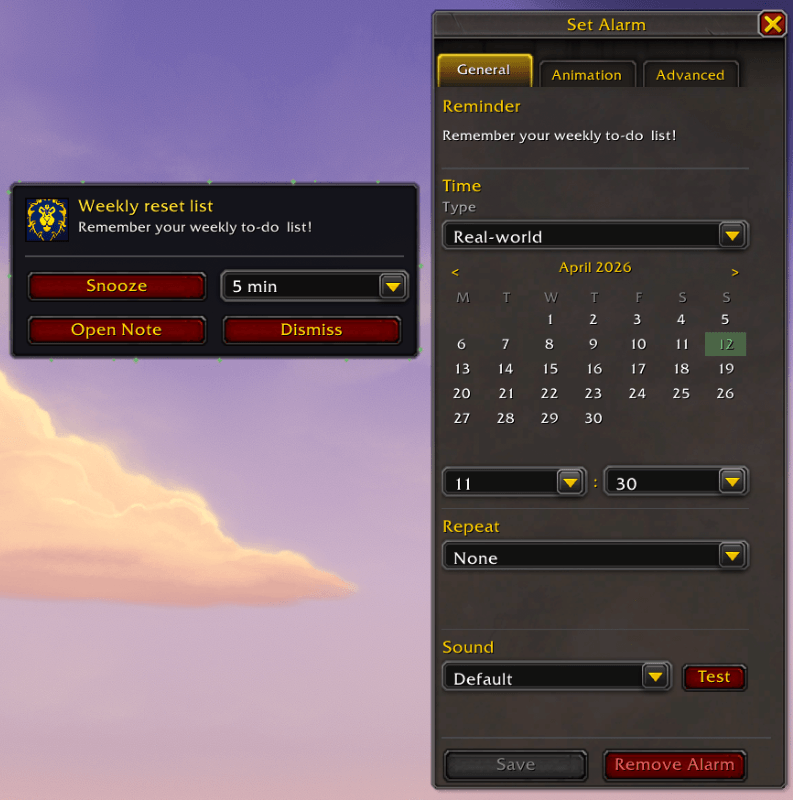
- Your notes can have alarms set so that they show up the date and time you want
- This feature is highly configurable to fit your needs
- You can set an alarm from right click menu in main window, or from the new alarm button on a sitcky note
- There is also an "Alarms" window that shows you all alarms you have set
🔄 Copy / paste, history & Comparison
- Undo / Redo: You can undo and redo text you've typed in notes. Either by using the buttons in the toolbar above the body, or by using Ctrl+Z/Y.
- History: History works much like Microsoft Word and Google Docs. You have a list of previous "Snapshots", these save automatically when you close the game, or reload. This way you can go back to older notes if you want. It saves 5 by default, but you can increase this to 20. You also have a manual snapshot slot. You can click the "Create manual restore point" to make a manual restore point that persist and can only be overriden by the user.
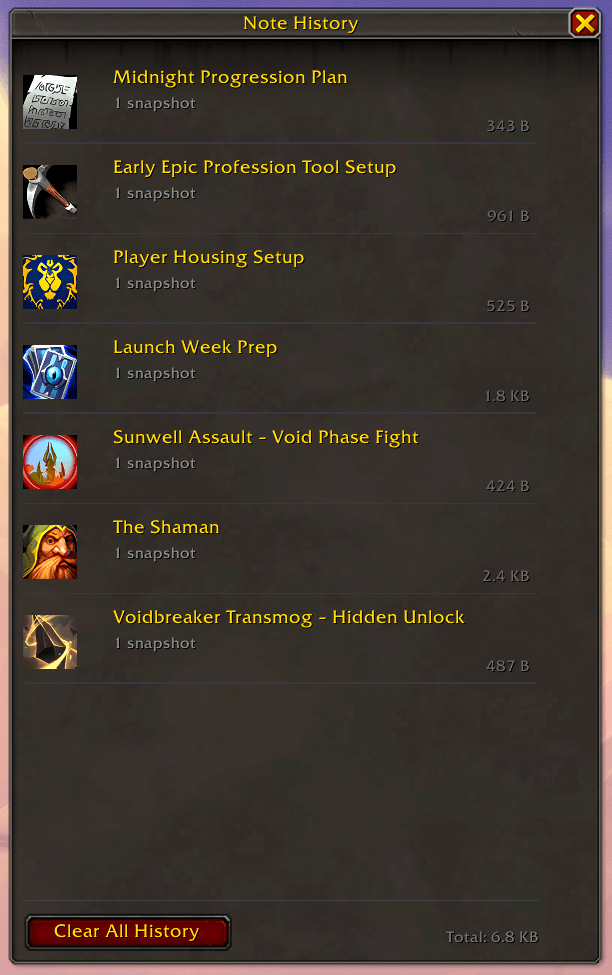
- History list: Check out the history of all notes in handy History window!
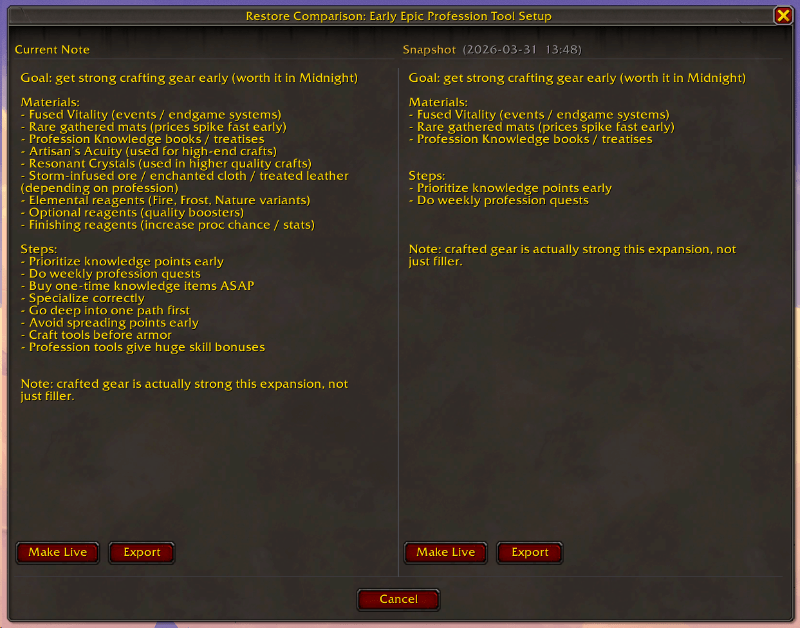
- Comparison: Before restoring a note, you can compare the two. You can chose which to make live, you can also export the note from there as either JSON or MD
🗺️ Contextual Surfacing
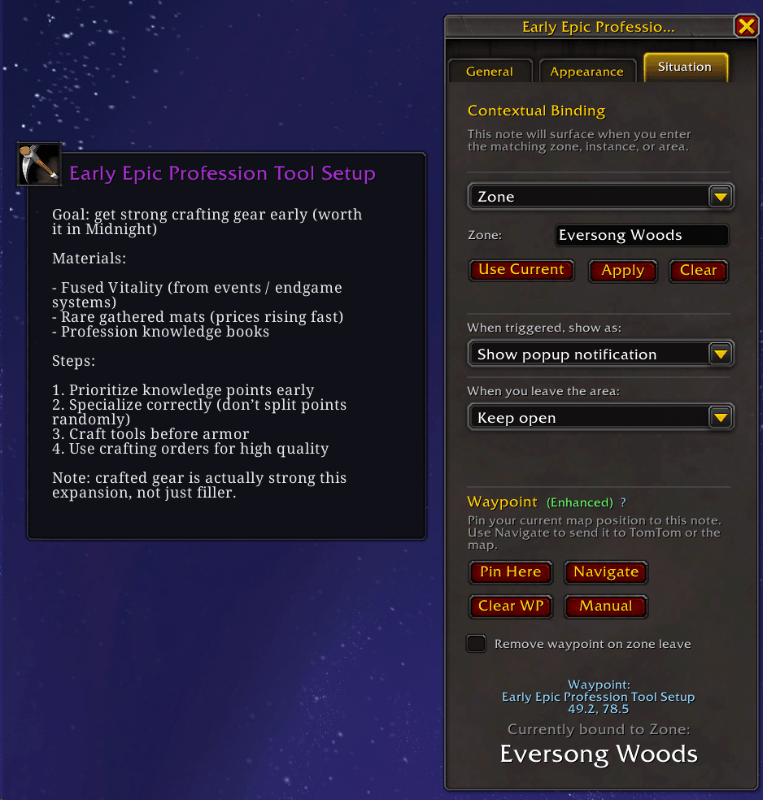

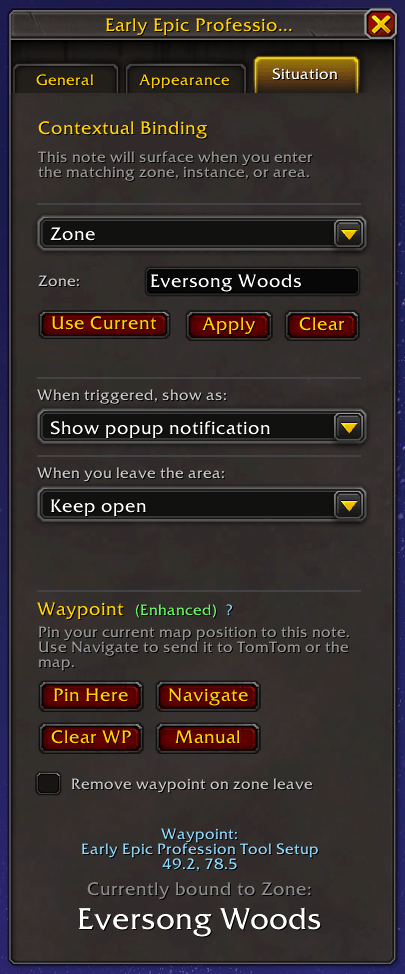
Notes can be tagged with a context — a zone, instance, subzone, or player name. BigNoteBox monitors your environment and surfaces the right notes automatically.
- Popup toast: a brief notification appears when you enter a matching zone or target a matching player
- Sticky note: the note opens directly as a floating sticky
- Both: popup and sticky simultaneously
- Configurable hold time for the popup (or set to 0 to keep it until dismissed)
- Draggable anchor to position popup notifications anywhere on screen
- Context leave behavior: close the sticky when you leave the zone, or keep it open
- Set a waypoint that will fire into Tomtom / Waypoint UI when you enter the zone you have set
- Zone & Instance Picker: A new zone browser in Note Settings → Situation makes it easy to bind a note to any zone or instance in the game, even ones you've never visited. Click the browse button next to the Zone or Instance input field to open the picker. Browse by Zones or Instances tabs, filter by typing, and click any entry to fill the field. Hover over a truncated name to see the full text. Powered by LibTourist-3.0
✍️ Focus Mode
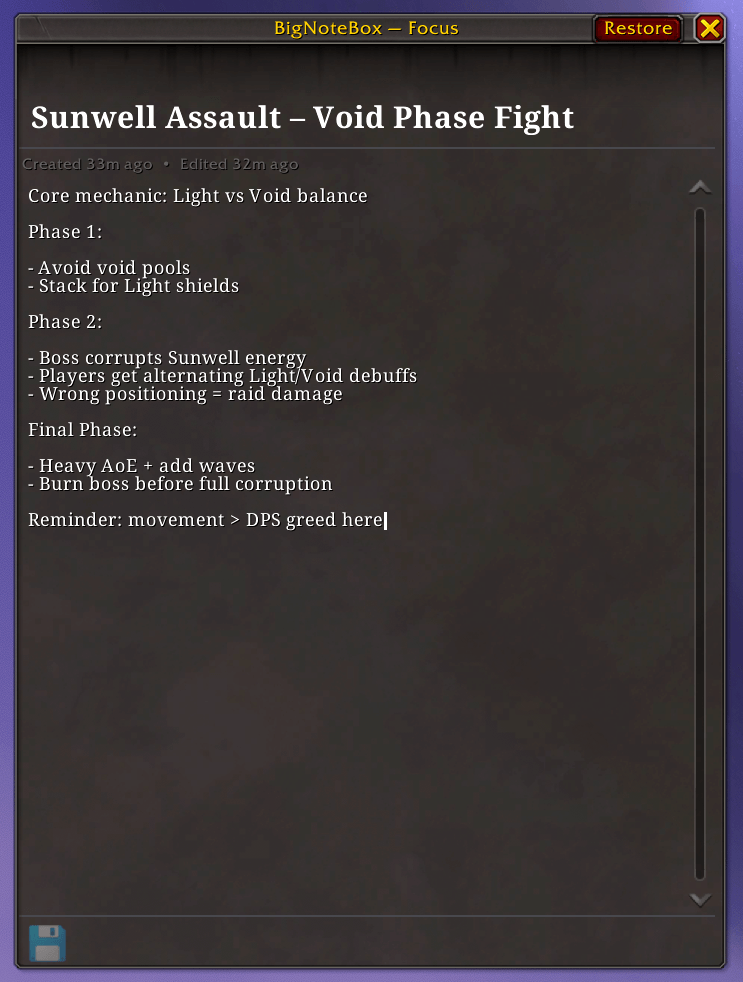
A distraction-free writing window that fades the main UI and gives your note the full screen. Opens centered on the main window and closes cleanly when you are done.
🔗 Send and BigChatBox Integration
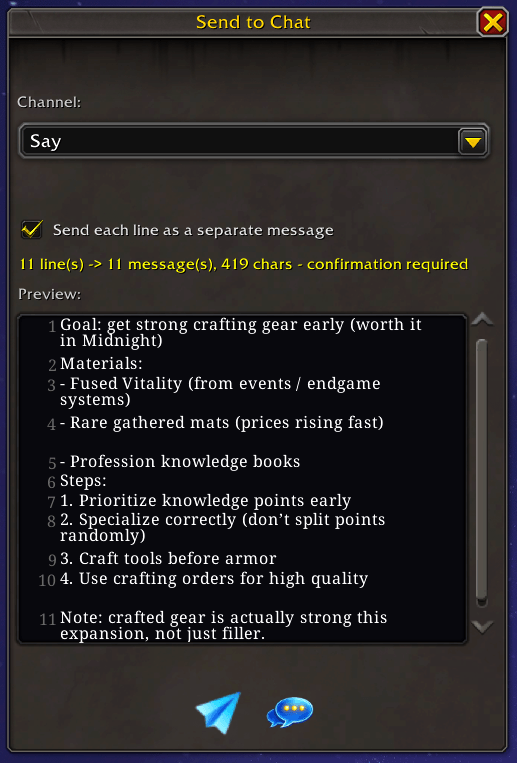
BigNoteBox integrates with BigChatBox (BCB) if it is installed. BCB is not required.
- Send a note to chat line by line with a single button — useful for sharing boss tactics or shopping lists in party or raid chat
- Capture text directly from the BigChatBox edit box as a new note
- You can also send notes directly without going through BCB
🎨 Appearance & Fonts
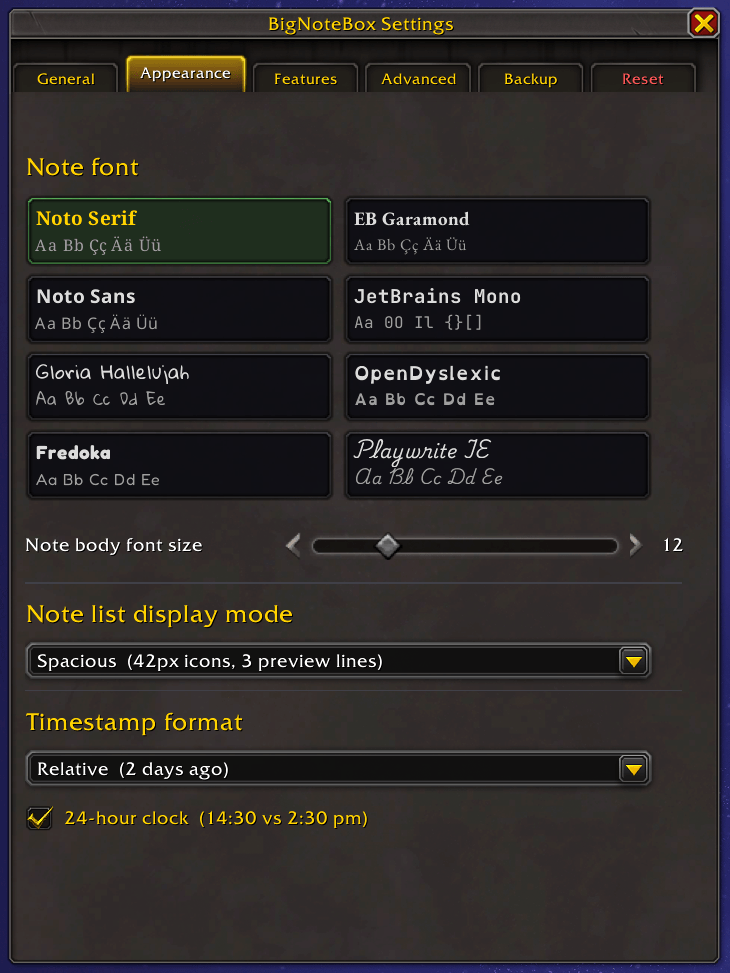
- Four bundled fonts: Noto Serif, EB Garamond, Noto Sans, JetBrains Mono, Gloria Hallelujah, OpenDyslexic, Fredoka and Playwrite Ireland
- Per-note font override independent of the global setting
- Configurable font size, line height, and text alignment in the note editor
- Note title color picker with a full class-color and quality-color swatch grid
- Timestamp format options: relative ("2 days ago"), YYYY-MM-DD, DD-MM-YYYY, MM-DD-YYYY
- 12-hour or 24-hour clock
🎨 Skin mode
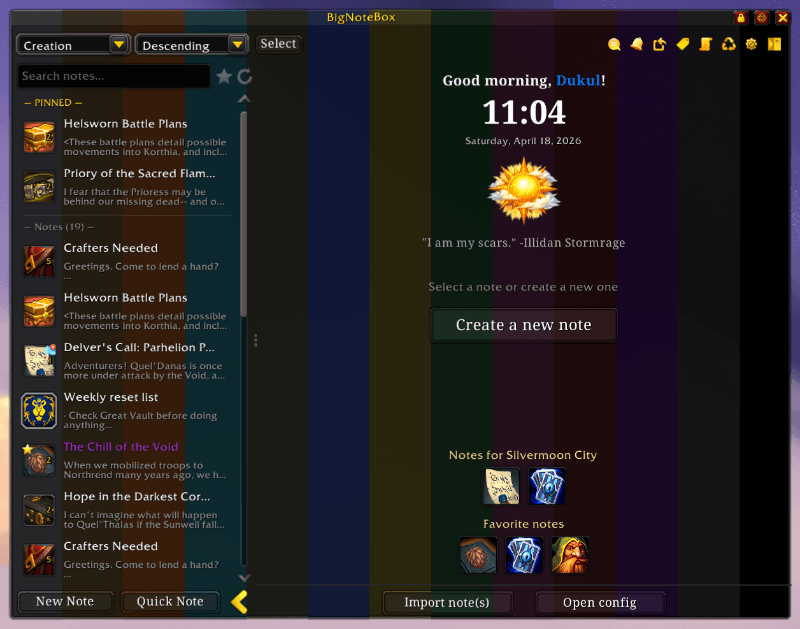
- v1.4.5 introduced a skinning mode with 13 different colors and an OLED skin
- Choose the color that matches your mood and change the brightness of it if you want
📨 Share notes
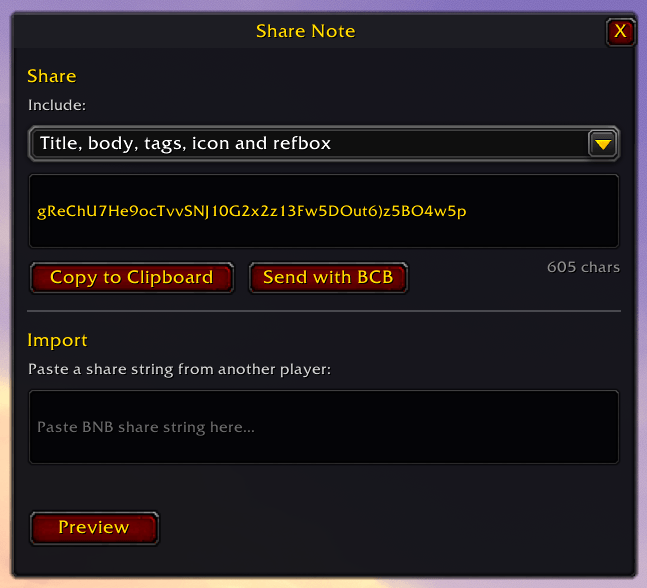
- You can share notes easily through the share system. Right click a note or click the share icon in the WYSIWYG toolbar
- Decide what metadata you want to share
- Send the string to another user in-game or Discord etc.
- Click "Import" button in the top right corner and import the note into your BNB
👤 Note Scoping
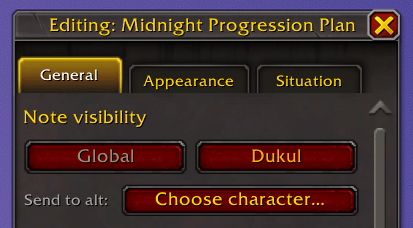
Notes can be global (visible on all characters) or scoped to a specific character.
- Character-scoped notes are hidden on other characters and won't surface in context checks
- Send a note directly to an alt from the note settings panel
- Known characters are tracked automatically; manage them from the Config window
💾 Backup & Export
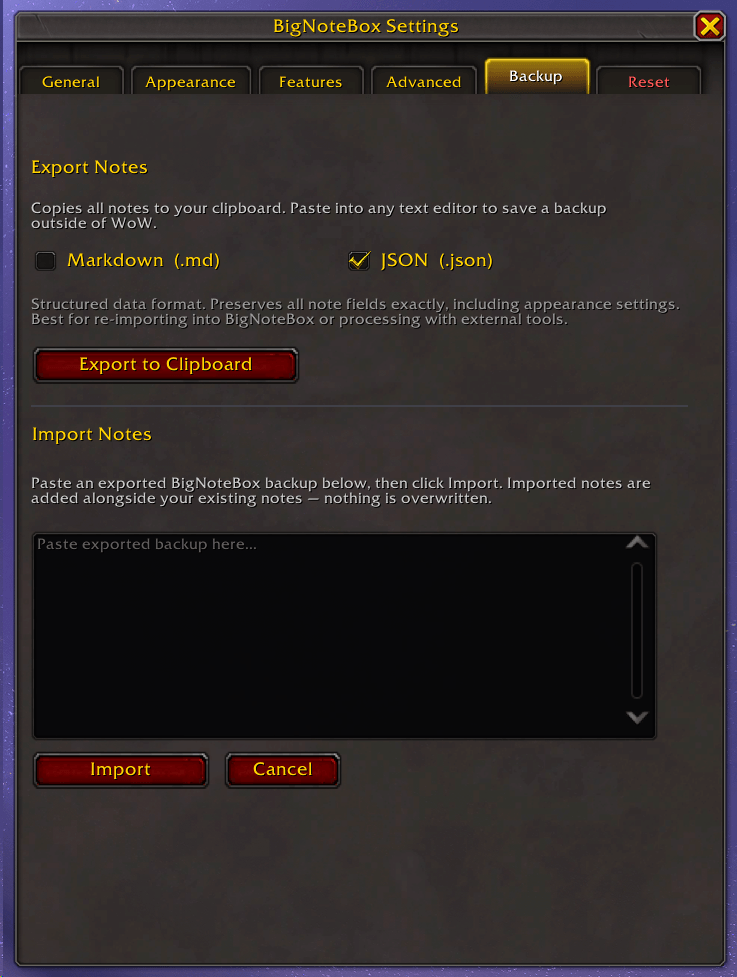
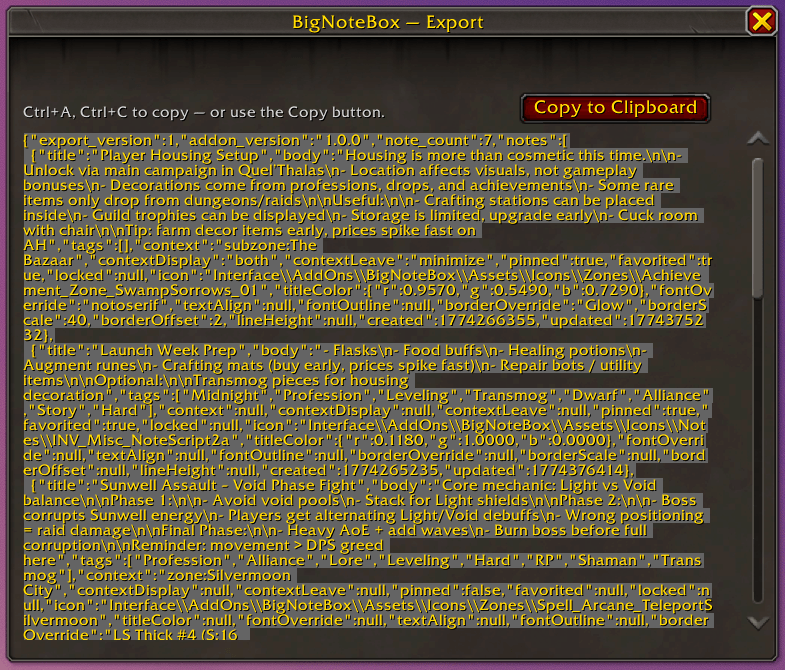
- Export all notes to Markdown or JSON — copies to clipboard, with a scrollable fallback
- Import notes from either format — adds alongside existing notes, no data loss
- Fresh IDs on import to prevent collisions
- Version-stamped export format for forward compatibility
🚮 Recyle bin
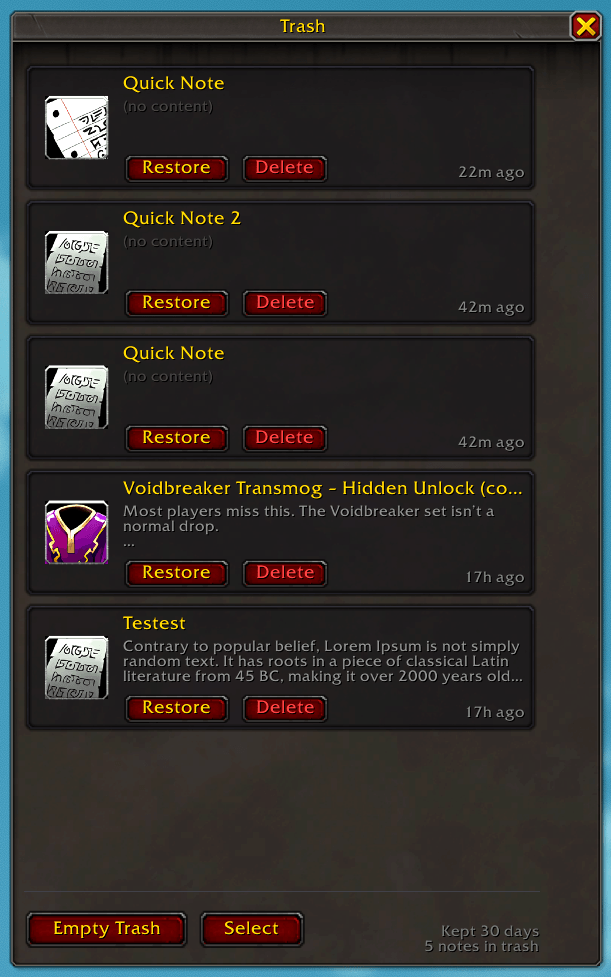
- If you delete a note it's placed in the recycle bin where it can stay between 1 and 90 days before being delete completely
- You can also turn off this function and have it delete the note without moving to the recylce bin
- You can restore the note whenever you want before the time runs out
🏷️ Tag system

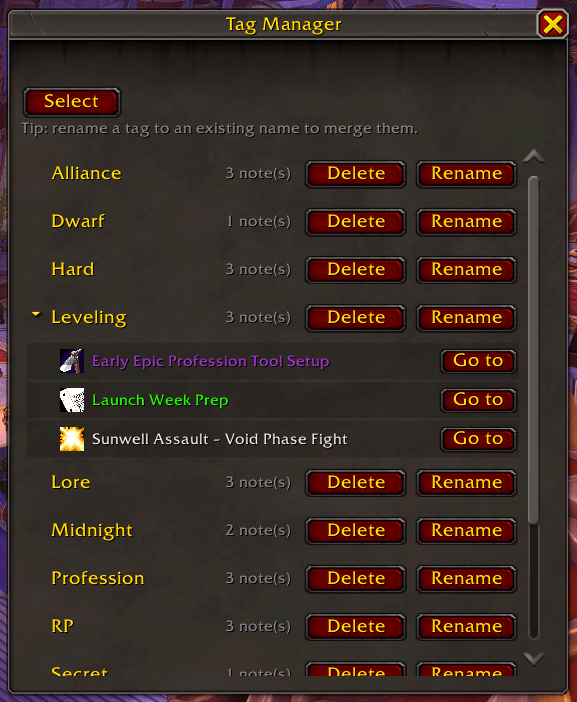

- You can add tags to your notes to easily find notes with the same tag
- Merge tags by changing the name of a tag to the tag you want to merge with
🗃️ Reference Box (refbox)
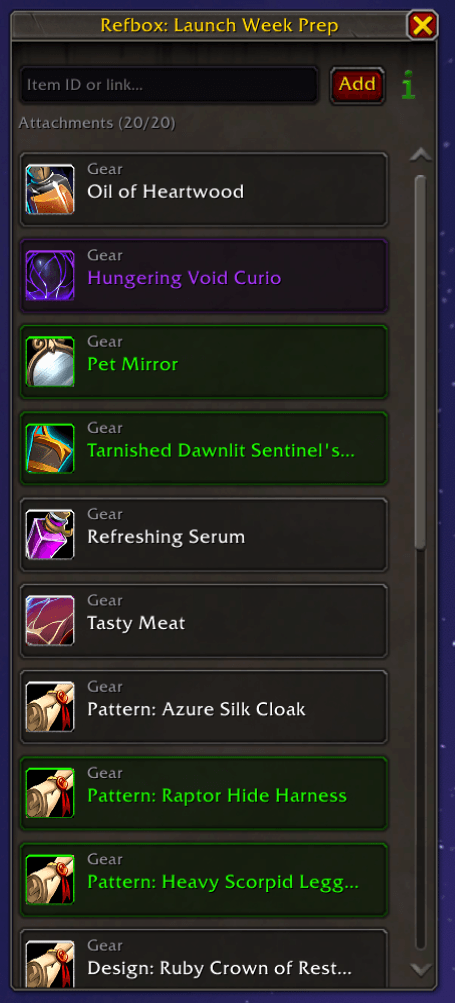
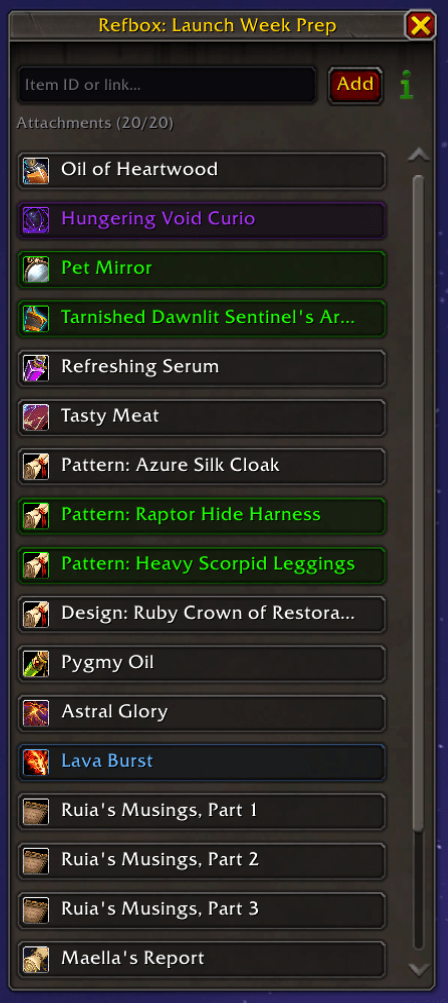
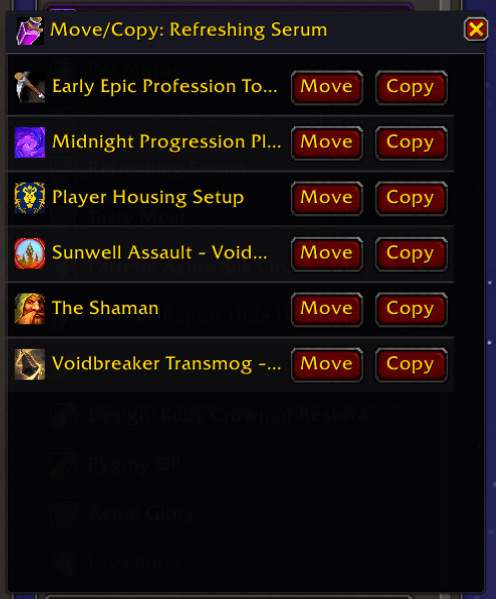
- This "box" (icon next to the save button in a open note) will let you attach items and spells to a separate window to the right of the main note window. This way you can keep track of items relevant for your notes (full tooltip support on the attachments)
- You can add items and spells by draging and dropping them into the window, or by manually adding the SpellID and ItemID in the input box
- Right click to move/copy items into other notes, remove them (also by clicking the X in top right corner of attachment),
- It can also send the attachment to the chat input box by left clicking it for easy sharing
- You can change how many attachments each note should allow (1 to 50. 20 is default)
- You can change the look of the refbox (normal and compact)
⚙️ Configuration
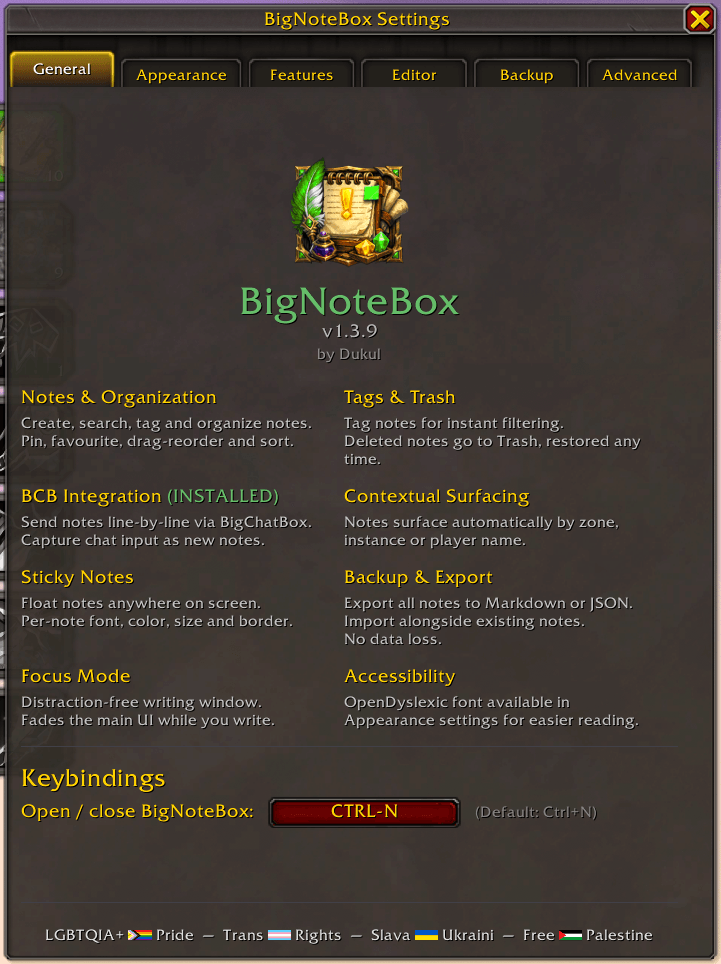
All settings are accessible from the main config window (the gear icon or /bnb config):
- Appearance tab — font, list mode, timestamp format
- Features tab — autosave, lock-by-default, context popup settings, BCB integration toggle
- Advanced tab — minimap button, login message, confirm-close prompt
- Backup tab — export and import
- Reset tab — reset settings, delete all notes, manage known characters
💬 Slash Commands
| Command | Action |
|---|---|
/bnb |
Toggle the main window |
/bnb new |
Create a new note |
/bnb search <text> |
Search notes |
/bnb config |
Open the config window |
/bnb reset |
Reset all settings (notes are kept) |
📦 Libraries
BigNoteBox comes bundled with the following libraries:
- LibStub
- CallbackHandler-1.0
- LibSharedMedia-3.0
- LibDataBroker-1.1
- LibDBIcon-1.0
- LibAnimate
- LibTourist-3.0
- LibCustomGlow
🔮 Working on
These are things on my roadmap, but nothing is set in stone
- Note Styling — underline text in notes, colorize text change alignedment etc. This would only be a visual thing with caveats. Probably a long way down the road
- Integration — Add support for more addons that would synergize well with BNB
- Quick Edit Sitcky Notes — Let you edit notes directly from the sticky note
- Backup reminder — Auto reminder that fires ever X time of logging in or after X days of playing, just so you remember to take backup of your notes if you want to keep them
BigNoteBox is developed by Dukul. Bug reports and feature requests are welcome via the CurseForge issue tracker or just make a comment.
CurseForge: https://www.curseforge.com/wow/addons/bignotebox用户评价
暂无 / 5,0 条评价相关推荐
继续看看这些内容
