插件中文资料库
中文说明、玩家点评、适用场景和替代推荐,方便快速判断是否适合你。
- 界面布局、头像框、姓名板和动作条优化
 Ultimate Gathering Counter
 LootRollMover
 xanTooltipHoudini
asUnitFrame 插件下载与使用指南
本页整理了 asUnitFrame 的功能用途、适用人群、安装方法和常见问题,方便玩家快速判断是否需要安装。
适合谁用
asUnitFrame 是一款 单位框架 类插件,适合需要优化界面、提升操作效率或补充游戏信息提示的魔兽世界玩家。
基本信息
- 插件作者:asMOD_kr
- 插件分类:单位框架
- 适配版本:12.0.5,12.0.7
- 累计下载:0
安装方法
- 点击上方下载按钮获取 asUnitFrame插件文件。
- 解压后将插件文件夹放入 World of Warcraft/_retail_/Interface/AddOns 目录。
- 重启游戏或在角色界面点击插件,确认 asUnitFrame 已启用。
- 如果插件不生效,请检查版本是否匹配,或关闭同类冲突插件后重试。
使用建议
asUnitFrame 安装后建议先在角色界面确认已启用,进入游戏后根据插件提供的命令、小地图按钮或设置面板进行调整。如遇到报错,可先单独启用该插件排查冲突。
asUnitFrame 常见问题
asUnitFrame 适合需要 单位框架 类功能的玩家,特别是希望提升游戏便利性、界面管理或战斗信息获取效率的用户。
下载后解压到 Interface/AddOns 目录,然后重启游戏并在角色界面启用插件。
常见原因是目录多套一层、游戏版本不匹配、依赖插件缺失或同类插件冲突。
可以查看本页的替代插件推荐和相关插件区域,按下载量和分类选择同类工具。
插件 AI 问答
可以问:这个插件正式服能用吗、和 DBM 冲突吗、怎么设置、有没有替代插件。
asUnitFrame 是一款魔兽世界插件,主要用于界面框架、头像、动作条或冷却显示优化。建议根据自己的版本和插件环境先测试兼容性。
插件用途
asUnitFrame 主要面向需要单位框架功能的玩家,用来改善游戏体验、减少重复操作或补充默认界面没有直接提供的信息。
适用场景
- 界面框架、头像、动作条或冷却显示优化
使用建议
安装后建议先在角色选择界面或插件管理器中确认已启用,再进入游戏测试是否与现有整合包、WA 和其他插件冲突。如遇报错,可以先禁用同类插件排查。
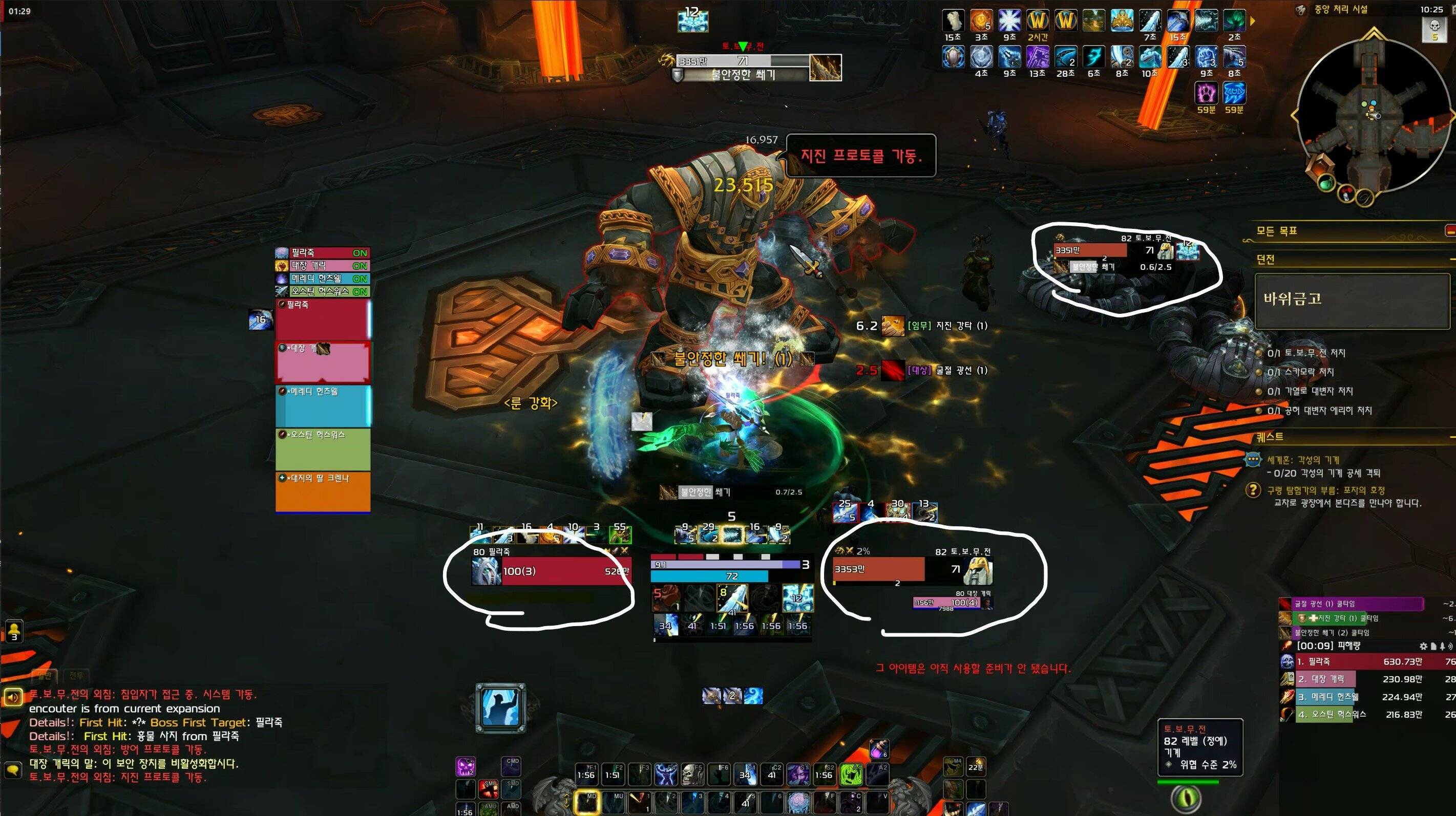
asUnitFrame (Midnight)
Simple unit frames
Default settings
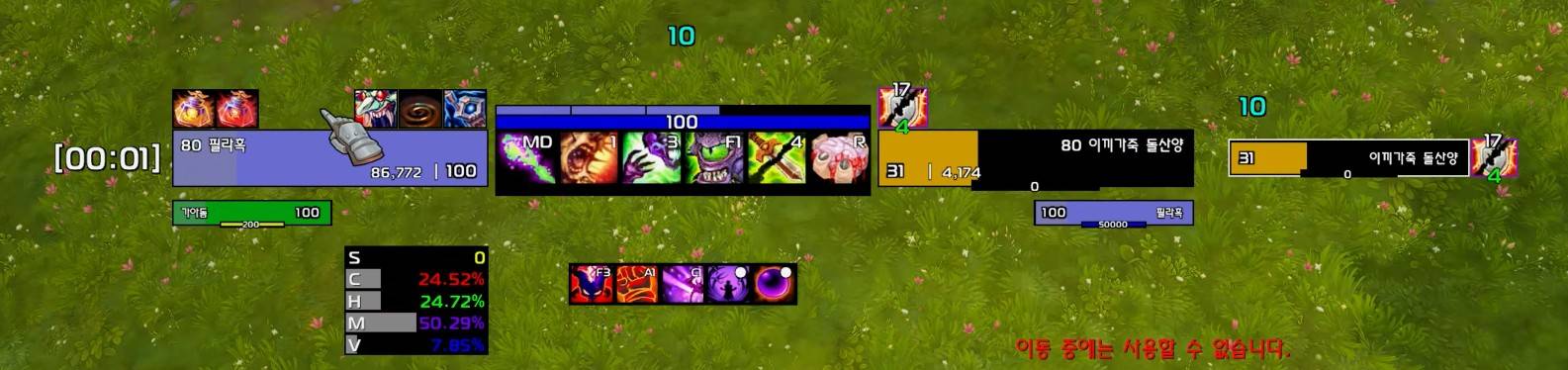
When portrait is disabled
This addon replaces the default unit frames. It is recommended to use it with other asMOD addons, specifically:
- asPowerBar : Displays resources like energy
- asDebuffFilter : Displays debuffs on the target
- asBuffFilter : Displays buffs on the target
- asDotFilter : Tracks debuffs on bosses
- asTargetCastingBar : Displays target's casting
Supported Unit Frames
- Player
- Target
- Focus
- Pet
- Target of Target
- Boss (Boss 1 ~ 5) frames are supported.
Key Features
- Health Bar: * Displays current health, max health, and percentage (%). * Displays death status. * Displays incoming healing and shields (absorption). * Displays class colors
- Resource Bar:
- Hidden if the player's primary resource is displayed in asPowerBar
- Displays an additional mana bar if the player has mana in addition to their primary resource
- Cast Bar (Focus, Boss):
- Displays the name, icon, and remaining/total time of the current spell.
- Status Icons:
- Elite/Rare/World Boss icons.
- In-combat icon.
- Resting icon (Player).
- Party leader/Raid leader icons.
- Role (Tank/Damage/Healer) icons.
- Raid Markers: Displays assigned raid markers (Star, Circle, etc.).
- Aggro (Threat Level): Displays the player's threat level (%) and status color on the target frame.
- Portrait (Optional):
- Displays unit portraits
- Debuff Display (Pet, Target of Target):
- Displays debuffs at the bottom of the frame. (Max 4)
- Buff Display (Boss):
- Displays buffs on the left side of the frame (Max 4, optional)
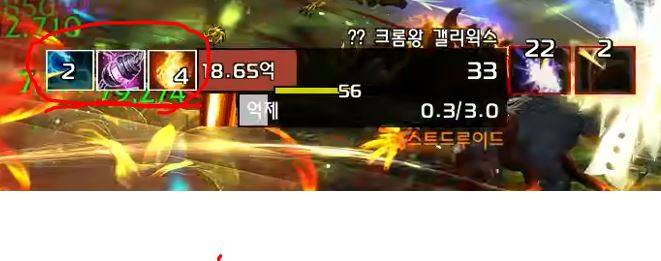
- Displays buffs on the left side of the frame (Max 4, optional)
- Totem Bar (Optional, Player):
- Displays a totem bar at the bottom of the player frame
- Can immediately destroy the totem by clicking the icon
- Target Selection Status (Optional, Focus, Boss):
- Displays a white border if the focus or boss is the current target.
- Range Check (Optional, Target, Focus, Boss):
- For hostile targets, the frame turns red if the distance is over 40m. (30m for Evoker/Demon Hunter)
- Hide Default UI: Automatically hides default Blizzard unit frames (Player, Target, Focus, Pet, Boss).
- Right-click Menu: Right-clicking each unit frame enables the target interaction menu.
- Ping/Click-Cast System Support: * Vehicle Interface: When the player enters a vehicle, the player frame automatically switches to the vehicle unit, and the pet frame switches to the player unit.
- Combat Status Transparency: Transparency is slightly lower (50%) out of combat and becomes fully opaque (100%) during combat.
Configuration
Repositioning : Enter the
/asConfigcommand in the chat windowReset Position : Enter the
/asClearcommand in the chat window to reset to default settingsesc >> Options >> Addons >> asUnitFrame Settings (Default On)
ShowPortrait: Toggle portraitsShowTotemBar: Toggle totem bar at the bottom of the player frameShowBossBuff: Toggle 4 buffs on boss framesShowTargetBorder: Displays a white border when focus/boss is the current targetShowAggroInfo: Toggle display of aggro status and player rest state.CheckRange: Checks distance with target/focus/bossOffPortraitDebuffOnRaid: Do not show stun debuffs on portraits during raidsCombatAlphaChange: Transparency change out of combat- Player/Target Size Adjustment
Width: Default 200Height: Default 35PowerWidth: Default 80PowerHeight: Default 5FontSize: Default 12- Focus/Boss Size Adjustment
FocusWidth: Default 150FocusHeight: Default 20FocusPowerWidth: Default 60FocusPowerHeight: Default 3FocusFontSize: Default 11- Pet/Target of Target Size Adjustment
PetWidth: Default 100PetHeight: Default 15PetPowerWidth: Default 40PetPowerHeight: Default 2PetFontSize: Default 9MillisecondsThreshold: The time threshold at which the remaining cooldown begins displaying in 0.1-second increments (Default: 3 seconds).
Precautions (Regarding Errors)
The following errors may occur.
- Edit Mode Error: Errors may occur when using Edit Mode, making it impossible to change settings. Need to disable asUnitFrame before using Edit Mode.
Contact Information
- Korean Users: Visit the Inven asMOD Forum.
- English Users: Visit the asMOD YouTube Channel or GitHub.
asUnitFrame (한밤)
간단한 유닛 프레임
기본 설정
초상화 미사용 설정시
기본 유닛 프레임을 대체하는 애드온입니다. 다른 asMOD 애드온과 함께 사용하는 것을 권장하며, 다음 애드온들이 추천됩니다:
- asPowerBar : 기력등을 표시
- asDebuffFilter : 대상의 디버프를 표시
- asBuffFilter : 대상의 버프를 표시
- asDotFilter : 보스의 디버프를 표시
- asTargetCastingBar : 대상이 시전을 표시
지원 유닛 프레임
- 플레이어 (Player)
- 대상 (Target)
- 주시 대상 (Focus)
- 소환수 (Pet)
- 대상의 대상 (Target of Target)
- 보스 (Boss 1 ~ 5) 프레임을 지원합니다.
주요 기능
- 체력 바:
- 현재 체력, 최대 체력, 백분율(%) 표시.
- 죽음 상태 표시.
- 받는 치유량 및 보호막(흡수량) 표시.
- 직업 색상 표시
- 자원 바:
- 플레이어의 주 자원은 asPowerBar에 표시 되면 미표시
- 주자원 외 마나 보유 시 마나 바 추가 표시 (플레이어)
- 시전 바 (주시 대상, 보스):
- 현재 시전 주문의 이름, 아이콘, 남은 시간/총 시간 표시.
- 상태 아이콘:
- 정예/희귀/월드 보스 아이콘 표시.
- 전투 중 아이콘 표시.
- 휴식 중 아이콘 표시 (플레이어).
- 파티장/공격대장 아이콘 표시.
- 역할(방어/공격/치유) 아이콘 표시.
- 공격대 징표: 설정된 공격대 징표(별, 동그라미 등)를 표시.
- 어그로(위협 수준): 대상 프레임에서 플레이어의 위협 수준(%) 및 상태를 색상으로 표시.
- 초상화 (선택 사항):
- 유닛 초상화를 표시
- 디버프 표시 (소환수, 대상의 대상):
- 프레임 하단에 디버프 표시. (최대 4개)
- 버프 표시 (보스):
- 프레임 좌측에 버프 표시 (최대 4개, 옵션)
- 프레임 좌측에 버프 표시 (최대 4개, 옵션)
- 토템 바 (선택 사항, 플레이어):
- 플레이어 프레임 하단에 토템바 표시
- 아이콘 클릭으로 해당 토템을 즉시 파괴 가능
- 대상 선택 여부 (선택 사항, 주시대상, 보스):
- 주시 대상 프레임, 보스 프레임의 경우 현재 대상인 경우 흰 테두리 표시.
- 거리 파악(선택 사항, 대상, 주시대상, 보스):
- 적대적 대상의 경우 대상과의 거리가 40m 이상인 경우 붉은색으로 표시 됨. (기원사/악사 30ms)
- 기본 UI 숨김: 기본 블리자드 유닛 프레임(플레이어, 대상, 주시 대상, 소환수, 보스)을 자동으로 숨김.
- 우클릭 메뉴: 각 유닛 프레임에서 우클릭 시 대상 상호작용 메뉴 가능.
- 핑(Ping)/클릭 시전 시스템 지원:
- 차량 탑승: 플레이어가 차량에 탑승하면 플레이어 프레임이 차량 유닛으로, 소환수 프레임이 플레이어 유닛으로 자동 전환.
- 전투 상태 투명도: 비전투 시 프레임 투명도가 약간 낮아지고(50%), 전투 시 완전히 불투명해짐(100%).
설정
위치 이동 :
/asConfig명령어 채팅창에 입력위치 초기화 :
/asClear명령어 채팅창에 입력, 기본 설정으로 초기화esc >> 설정 >> 애드온 >> asUnitFrame 설정 (기본 On)
ShowPortrait: 초상화 표시 여부ShowTotemBar: 플레이어 프레임 하단에 토템바 표시 여부ShowBossBuff: 보스 프레임에 버프 4개 표시 여부ShowTargetBorder: 주시/보스가 대상인 경우 하얀색 테두리 표시ShowAggroInfo: 어그로 및 플레이어 휴식 상태 표시 여부CheckRange: 대상/주시/보스와의 거리를 체크OffPortraitDebuffOnRaid: 레이드에서는 초상화에 스턴 디버프 표시 안함CombatAlphaChange: 비전투시 투명도 변경- 플레이어 대상 크기 조정
Width:기본값 200Height:기본값 35PowerWidth:기본값 80PowerHeight:기본값 5FontSize:기본값 12- 주시/보스 크기 조정
FocusWidth:기본값 150FocusHeight:기본값 20FocusPowerWidth:기본값 60FocusPowerHeight:기본값 3FocusFontSize:기본값 11- 소환수/대상의대상 크기 조정
PetWidth:기본값 100PetHeight:기본값 15PetPowerWidth:기본값 40PetPowerHeight:기본값 2PetFontSize:기본값 = 9MillisecondsThreshold: 남은 쿨을 0.1초 단위로 보여줄 최소 시간 (기본 3초)
주의사항 (오류 관련)
다음과 같은 오류가 발생 할 수 있습니다.
- 편집 모드 오류: 편집 모드 사용 시 오류가 발생하여 설정 변경 불가 가능. asUnitFrame을 끄고 편집 모드 진행 필요.
문의처
한글 유저:인벤 asMOD 포럼방문 (https://www.inven.co.kr/board/wow/5288)영문 유저:Youtube asMOD 채널방문 (https://www.youtube.com/@asmod-wow),Github방문 (https://github.com/aspilla/asMOD/)
用户评价
暂无 / 5,0 条评价相关推荐
继续看看这些内容
